When this is the right tool
Use Images to PDF when what you have is pictures: camera photos of paper pages, screenshots, or JPG and PNG files someone sent you. If you already have PDFs, use Merge to join them instead. ViaPDF does not take the photos itself, so take them with your camera app first.
Order and rotation
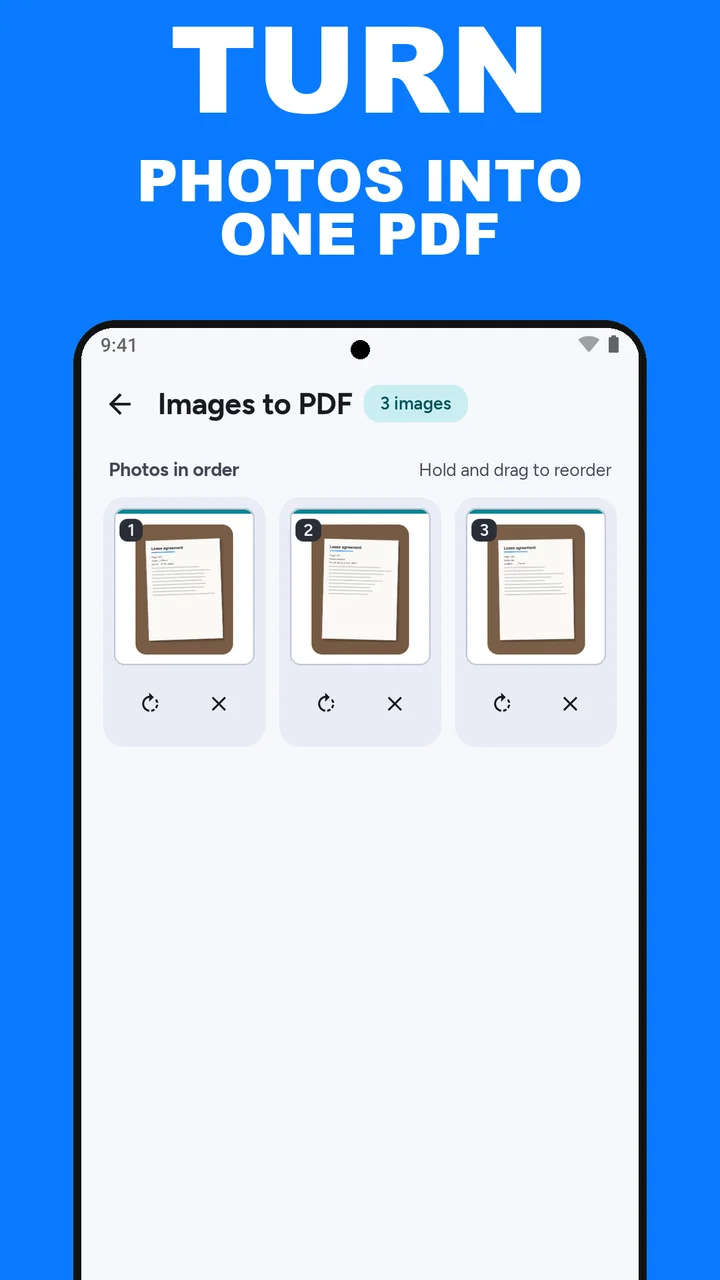
The photos appear under Photos in order, numbered as they will appear in the PDF. Hold a photo and drag it to move it. Each photo has a turn button that rotates it 90° and an × that removes it, with Undo if you change your mind.
Photos taken with the phone held sideways usually come out the right way up, because ViaPDF reads the orientation the camera saved. Use the turn button for the ones that don’t.
What the PDF looks like
Each photo becomes one page, and the page takes the photo’s shape, so there are no white borders around it. Pages are about the height of an A4 sheet, so the PDF prints at a sensible size. The file is named Images.pdf.
The text in the photos is not selectable yet. If you need to search or copy it, open the new PDF in OCR and tap Save searchable PDF.
Too big to send?
Phone photos are large, so a PDF of ten pages can run to many megabytes. If a form or mail app has a limit, open Images.pdf in Compress and use Fit under a size: see compress a PDF to 2, 4 or 5 MB.
How to make a PDF from photos in ViaPDF
- Open Images to PDFOn the Tools tab, under Combine and split, tap Images to PDF.
- Choose photosTap Choose photos and select the pages in your gallery. ViaPDF only sees the photos you pick, and asks for no permission.
- Put them in orderUnder Photos in order, hold a photo and drag it to its place. The plus button adds more photos.
- Fix sideways photosTap the turn button under a photo to rotate it 90°. Tap × to remove one, and Undo to bring it back.
- Tap Make PDFEach photo becomes one page. Making the PDF runs on your phone.
- Preview, then Save or ShareTap the eye to check the pages, then Save or Share Images.pdf. The first export is free.
Do this job on your phoneFree to download. The first export is free. Then $14.99 once. The file stays on the device until you share it.
Photos to PDF FAQ
Are my photos uploaded?
No. The PDF is made on your phone. ViaPDF only reads the photos you select, and the PDF leaves the device only when you tap Save or Share.
Does it change the photos in my gallery?
No. ViaPDF works on copies. Rotating or removing a photo here does not touch the original.
Can I scan with the camera in ViaPDF?
No. Take the photos with your camera app, then pick them in Images to PDF.
How many photos can I add?
As many as your phone can handle. For a very large set, ViaPDF warns you before it starts, and you can make the PDF anyway.
Does it work with screenshots and PNG files?
Yes. JPG and PNG photos and screenshots from your gallery all work. Each one becomes a page.