Why convert a PDF to grayscale
People searching convert a PDF to grayscale on Android usually have a printing job. A colour handout, a form with a coloured banner, a scan with a tinted background. The printer is low on colour ink, or the office only prints in black and white, and you want to see the result before you send it.
Some documents also get smaller as grayscale, because they carry less colour information. Others do not change much. If the goal is a smaller file, use Compress, which shows the original and compressed size before you export. Grayscale is the tool for how the pages look.
What the Grayscale tool does
Grayscale takes one PDF and converts every page. There is no per-page choice and no level to set, so the whole tool is one button: Convert to grayscale. The result is a new file called Grayscale.pdf.
- Every page becomes black and white.
- You do not need an account, and nothing is uploaded.
- The file you opened is not changed.
If only a few pages need to be grayscale, extract those pages into their own PDF first, then convert that file.
When grayscale helps, and when it does not
Grayscale suits text pages, forms, and handouts where colour adds nothing. It is a poor fit for a chart that depends on colour to tell its lines apart, or a photo you want to keep in colour, because the colours are gone from every page. Look at the converted pages before you send them to a printer, and keep the colour original in case you need it again.
Pages become images. The pages in the result are written as images, so text is not selectable unless you run OCR and save a searchable PDF. Check the pages on screen before you print.
Before you start
- Grayscale works on one PDF at a time.
- Files over 250 MB or over 200 pages are rejected.
- The result is a new file. Your original keeps its colour.
- The first Save or Share is free. After that, one unlock for $14.99.
How to convert a PDF to grayscale in ViaPDF
- Open GrayscaleOn the ViaPDF home screen, open the Tools tab and tap Grayscale. You can also tap Open PDF first and then pick the tool.
- Choose the PDFPick the file from your phone. Nothing is uploaded.
- Tap Convert to grayscaleViaPDF converts every page and writes Grayscale.pdf.
- Save or ShareSave the file, or Share it to another app. The first export is free. The file you opened is not overwritten.
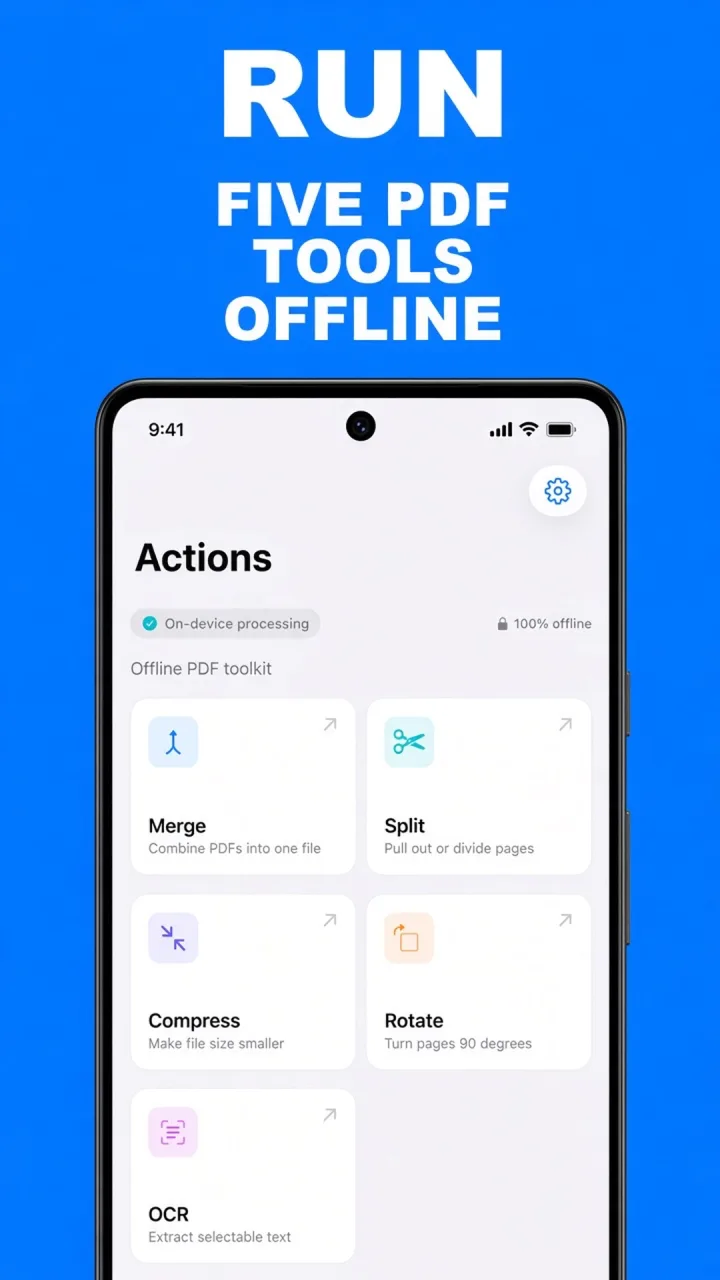
Do this job on your phoneFree to download. The first export is free. Then $14.99 once. The file stays on the device until you share it.
Print what you meant to print
Keep your colour original. Because ViaPDF writes a new file, you end up with two copies: the colour version you opened and Grayscale.pdf. Send the grayscale copy to the printer, and keep the original for the screen. If you later find that the grayscale version is hard to read in places, go back to the colour file and try again.
If the PDF is also too large to send, run Compress on Grayscale.pdf afterward. The confirmation screen after a Save offers “Keep going with this file” shortcuts, so you can carry on without choosing the file a second time. If the pages have wide empty borders that waste paper, crop the margins too.
Convert a PDF to grayscale FAQ
Does converting to grayscale make a PDF smaller?
It can for some documents, but ViaPDF does not promise a size reduction. If a smaller file is the goal, use Compress, which shows the original and compressed size before you export.
Can I convert only some pages to grayscale?
No. Convert to grayscale converts every page. To convert just a few, extract those pages into their own PDF first, then convert that file.
Is the colour original changed?
No. ViaPDF writes a new file called Grayscale.pdf and does not overwrite the one you opened.
Does grayscale conversion upload my PDF?
No. The pages are converted on your phone, and the file leaves the device only when you tap Save or Share. The first export is free.