Mark a PDF as a draft, a copy, or paid
Some PDFs need a label that travels with every page. A contract marked Draft tells the other side it is not final. A receipt marked Paid stops someone from paying twice. A file marked Copy or Confidential tells the next reader how to handle it. Anyone who searches add a stamp to a PDF usually needs that label on every page, not in an email that might get separated from the file.
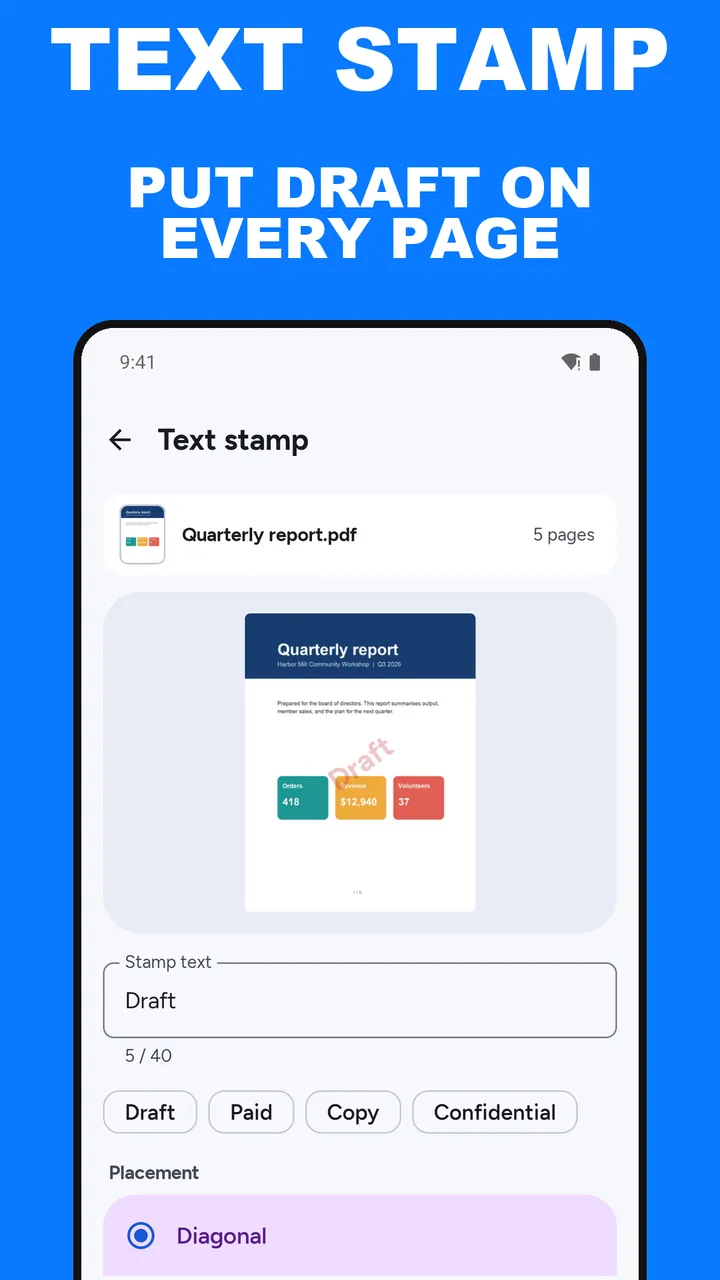
ViaPDF’s Text stamp tool writes the label you choose onto every page of one PDF. It runs on your phone, the result is a new file called Stamped.pdf, and nothing is uploaded while you work.
Text, placement, colour, and opacity
Four settings control the stamp.
- Stamp text. Up to 40 characters. Four suggestions sit under the field: Draft, Paid, Copy, and Confidential. Tap one to fill the field, then edit it if you need a different word.
- Placement. Diagonal runs across the middle of the page at an angle. Top and Bottom put the stamp at the centre of the top or bottom edge.
- Colour. Red, Blue, Grey, or Green. Grey is the quietest choice when the document has to stay easy to read.
- Opacity. From 10% to 80%. It starts at 25%. Raise it for a bold label, or lower it for a light one.
Check page 1 before you stamp every page
The preview shows page 1 with your stamp in the chosen text, colour, opacity, and placement. It updates as you type or change a setting, so you can see the result before the tool runs over the whole file. Check the spacing too. A Top or Bottom stamp can land near a header or footer that is already printed on the page, and the preview is the place to catch that.
A new file. The tool writes Stamped.pdf. The PDF you opened is not overwritten.
Before you start
- Text stamp works on one PDF at a time.
- The stamp goes on every page. To stamp only some pages, pull them out first with Split and stamp the new file.
- Put the pages in their final order before you stamp them, so the label lands on the right pages.
- The first Save or Share is free. After that, one unlock for $14.99 in the US. Google Play shows your local price.
How to add a text stamp in ViaPDF
- Open Text stampOn the ViaPDF home screen, open the Tools tab and tap Text stamp. You can also tap Open PDF first and then pick the tool.
- Choose the PDFTap Choose PDF and pick the file from your phone. Use Replace later if you want a different file.
- Type the stamp textEnter up to 40 characters in Stamp text, or tap a suggestion: Draft, Paid, Copy, or Confidential. Add stamp stays off until the field has text.
- Pick a placementChoose Diagonal, Top, or Bottom.
- Pick an ink colourTap a swatch: Red, Blue, Grey, or Green. The selected swatch has a thicker outline.
- Set the opacityDrag the Opacity slider between 10% and 80%. It starts at 25%. Check the preview of page 1.
- Tap Add stampViaPDF stamps every page and writes Stamped.pdf.
- Save or ShareSave or Share the result. The first export is free. The file you opened is not overwritten.
Do this job on your phoneFree to download. The first export is free. Then $14.99 once. The file stays on the device until you share it.
Stamp after you number and merge
If one file needs page numbers and a Draft label, add the numbers first and stamp the numbered file. Pick a stamp placement on a different edge from the numbers, so the two do not sit on top of each other. Add page numbers covers the position and style controls. If the pages came from several files, merge them first so the stamp covers the whole packet, not each file on its own.
Changing any setting clears the last result, so Save or Share always matches what is on screen. If you tap Add stamp again after a change, you get a fresh Stamped.pdf.
Text stamp FAQ
Does the stamp go on every page?
Yes. Add stamp puts the same text, colour, opacity and placement on every page of the PDF. ViaPDF cannot stamp only some pages, so if only part of the file needs the label, pull those pages out with Split first and stamp the new file.
Does ViaPDF add anything of its own to my PDF?
No. The only text added to your pages is the stamp you type.
Can I change the stamp after I add it?
Yes. Change the text, placement, colour or opacity and the result is cleared, so the file you save always matches the settings on screen. Tap Add stamp again to make a new Stamped.pdf.
Does adding a stamp upload my PDF?
No. The stamp is drawn on your phone, and the file leaves the device only when you tap Save or Share. The first export is free.