Pick the limit, not a level
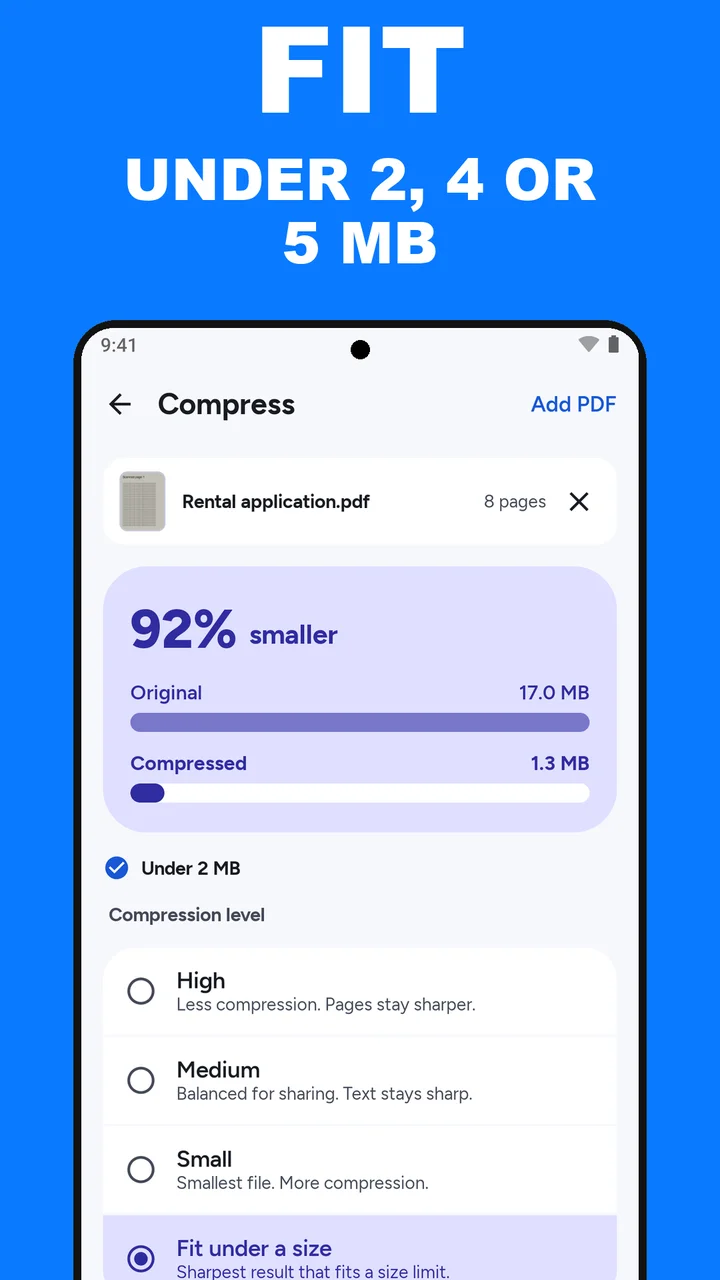
Compress has four choices. High, Medium and Small are fixed levels: you compress, read the new size, and try another level if it is still too big. The fourth, Fit under a size, works the other way round. You choose the size the form allows, and ViaPDF tries its quality steps on your phone until it finds the sharpest one that comes in under that number.
The common limits are one tap away: 2 MB, 4 MB and 5 MB. For anything else, tap Custom and type a size from 0.1 to 100 MB.
What you see after it runs
The card shows how much smaller the file got, with the Original and Compressed sizes. Under the card, one line tells you where you stand:
- Under 2 MB (with a check mark): the file fits. Save or Share it.
- Already under 2 MB: the file was small enough before you started. You can send the original.
- “Lease scan.pdf can’t get under 2 MB. The smallest it gets is 2.6 MB.”: even the strongest step is too big. The next section has what to do.
The numbers are examples. Your file and your limit will differ.
If it can’t get under the limit
- If the form only needs some pages, extract those pages first, then fit the shorter file.
- If colour is not needed, run Grayscale, then fit Grayscale.pdf. Grayscale does not promise a smaller file, so check the result again.
- If the portal takes more than one file, split the PDF into parts and fit each part.
How ViaPDF counts a megabyte. 2 MB means 2,000,000 bytes. Some portals count 2 MB as 2,097,152 bytes. Either way, a file that ViaPDF puts under 2 MB is under the portal’s 2 MB too.
Several files at once
You can add more than one PDF. Each file is fitted under the limit on its own, which matches portals that cap each attachment. If the portal caps all attachments together, divide the limit by the number of files and use Custom, for example 1.5 MB each for three files under 5 MB.
Need something smaller, such as 1 MB, 500 KB or 200 KB? Read compress a PDF to 1 MB or less. For the fixed levels, see compress a PDF on Android.
How to fit a PDF under 2, 4 or 5 MB in ViaPDF
- Open CompressOn the Tools tab, tap Compress, or tap Open PDF first and then pick Compress. Processing stays on your phone.
- Add the PDFChoose the file with Add PDF. You can add more than one.
- Choose Fit under a sizeIt is the fourth option, under High, Medium and Small: Sharpest result that fits a size limit.
- Pick the limitUnder Target size, tap 2 MB, 4 MB or 5 MB. For another number, tap Custom and type a size from 0.1 to 100 MB.
- Tap CompressViaPDF tries its quality steps and keeps the sharpest one that fits. The card shows the Original and Compressed sizes.
- Check the line under the cardUnder 2 MB means it fits. If it says the file can't get under the limit, extract fewer pages or try Grayscale first.
- Save or ShareThe result is Compressed.pdf. The first export is free.
Do this job on your phoneFree to download. The first export is free. Then $14.99 once. The file stays on the device until you share it.
Compress a PDF to 2, 4 or 5 MB FAQ
Will the file be exactly 2 MB?
No. It will be under 2 MB, usually by a little, sometimes by a lot. ViaPDF keeps the sharpest step that fits, and stops when it finds one.
Is the text still sharp?
ViaPDF picks the sharpest result that fits, so a generous limit like 5 MB keeps pages close to the original. A tight limit on a long scan has to drop more detail. Preview the result before you send it.
Can I select the text in the compressed file?
No. Compress writes each page as an image. If the form needs searchable text, run OCR, tap Save searchable PDF, and fit that file.
Is my file uploaded?
No. Compression runs on your phone. The file leaves the device only when you tap Save or Share.
What if my file is already small enough?
The card says Already under 2 MB (or whichever limit you picked). You can send the original file as it is.