Why the email app refused the PDF
Email services cap how big an attachment can be. The limit depends on the account that sends or receives the message. At the time of writing, these are the usual figures, and they can change:
- Gmail and Yahoo Mail: about 25 MB
- Outlook.com: about 20 MB
- Work or school mail: often lower, commonly 10 MB
Attachments are also encoded for sending, which adds roughly a third to their size in transit. A file near the limit can still be refused, so aim comfortably under the number. If the bounce message shows a number, use that one.
Choose a path by how far over you are
- A little over the limit. Compress once at Medium. If the new size fits, send it.
- Far over the limit. Compress, then check the size again. If it is still too big, split the PDF into two or more emails, or send only the pages the reader needs.
- Scanned or photo PDFs. These shrink the most. A text-only PDF is rarely the reason a file is big, and it often shrinks only a little, so fewer pages may be the better fix.
Split is for when the reader needs most of the file. It saves the pages you pick as one PDF, so run it once for each part you want to send. If the reader needs only a few pages, extract those pages first, then compress the shorter file.
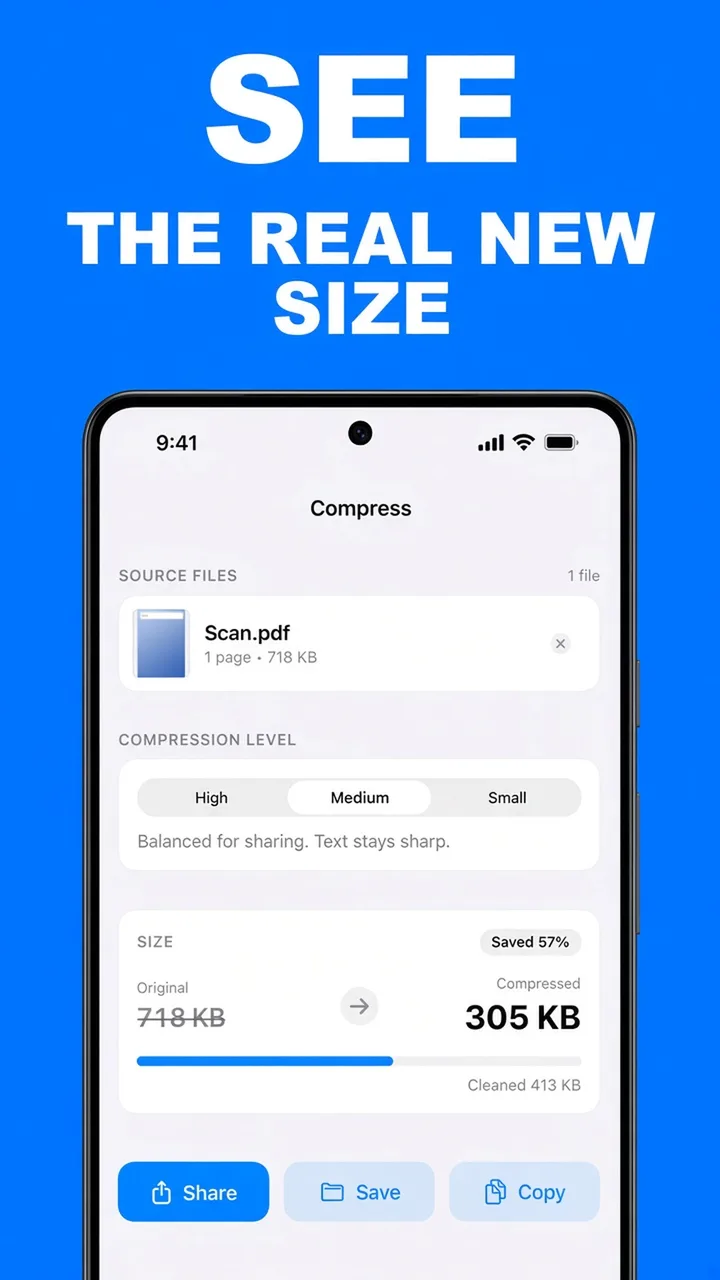
Check the number, then send. Compress shows the Original and Compressed sizes on a card before you export. Compare the Compressed size with your limit, leave some room for encoding, and export only when it fits.
How to shrink a PDF so it sends in ViaPDF
- Note the limitCheck the number in the bounce message, then compare it with the limits above.
- Open CompressOn the Tools tab, tap Compress, or tap Open PDF first and then pick Compress. Processing stays on your phone.
- Add the PDFChoose the PDF that was rejected. You can add more than one PDF.
- Try Medium firstMedium is balanced for sharing, and text stays sharp. Tap Compress and read the size card. Check the Compressed size against your limit.
- Switch to Small if you mustSmall is the smallest file and compresses more. Tap Compress again. If the card says Already as small as it gets, this file will not go lower, so send fewer pages instead.
- Save or Share to your email appExport only once the size fits. The result is Compressed.pdf, and the first export is free. Share it to your email app and attach it to the message.
When shrinking is not enough
If the PDF is still over the limit at Small, send only the pages the reader needs. Split writes those pages to a new PDF, and the original file is not changed. Page ranges such as 1-3, 5 are covered in split a PDF on Android. For a wider look at shrinking files for uploads and forms, read reduce PDF file size for email.
Do this job on your phoneFree to download. The first export is free. Then $14.99 once. The file stays on the device until you share it.
PDF too large to email FAQ
Will compressing make the text blurry?
Medium is described in the app as balanced for sharing, with text staying sharp. High compresses less and keeps pages sharper. Small is the smallest file, so use it when the size limit matters more than fine detail.
Is my file uploaded to shrink it?
No. ViaPDF compresses the PDF on your phone. The file stays on the device until you share it.
What if it is still too big after compressing?
Send fewer pages. Extract the pages the reader needs and compress that shorter file, or split the PDF so each part goes in its own email. Run Split once for each set of pages.
Does compressing change the original PDF?
No. Compress exports a new file, Compressed.pdf. Keep the original if you still need the sharper copy. The new file is written as page images, so its text is not selectable.