Why one scan becomes many files
A scanner or a phone’s scan option often saves each sheet, or each batch, as its own PDF. A 12-page form can end up as twelve files, or as three partial files that each hold a few pages. Sending that to a reviewer means they open a stack of attachments and guess the order.
The fix is one PDF with the pages in the order they should be read. ViaPDF builds that file from PDFs you already have.
Scan first, then combine
ViaPDF does not scan. It has no camera feature, and it does not turn photos or images into PDFs. It works on PDF files that already exist. So the first step happens outside the app: save each sheet as a PDF with a printer or scanner you have access to, or with the scan option in your phone’s files or drive app if it has one.
Once the scans are PDFs, bring them into ViaPDF and follow the steps below.
Merge the scans and set the page order
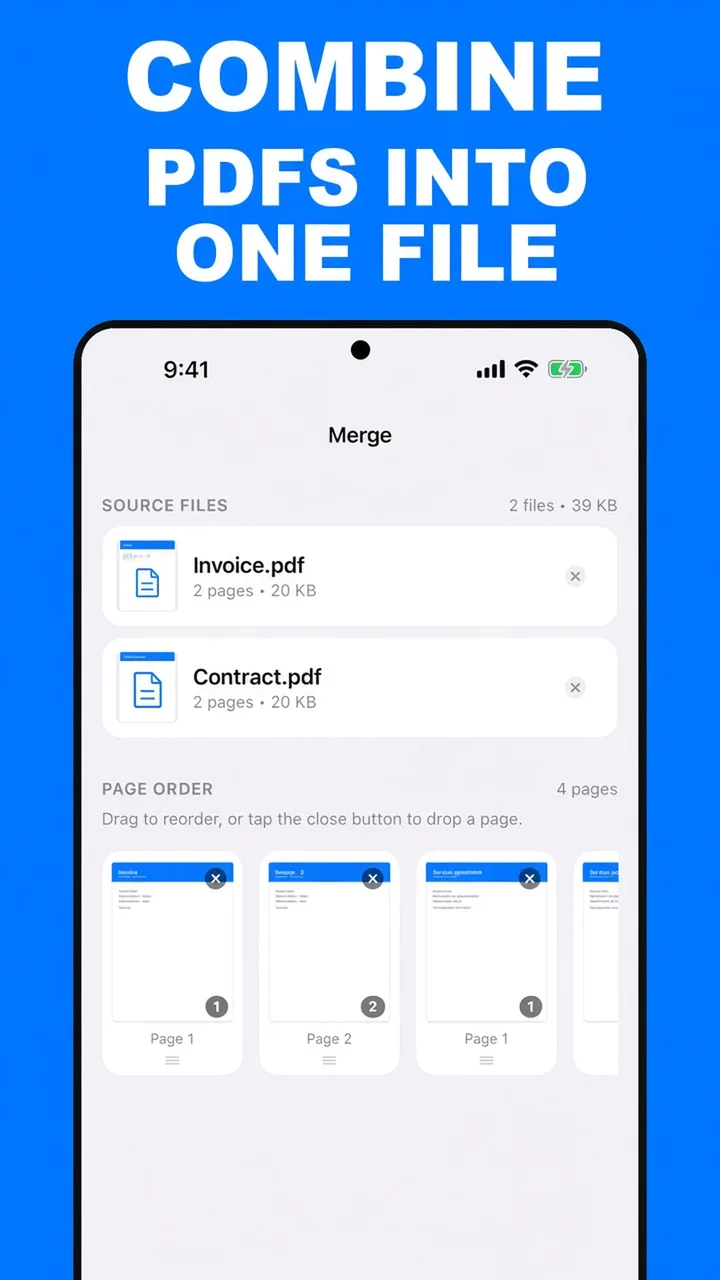
Use Merge to join the files. Each PDF you add shows as a chip, and every page from every file appears under Pages in order. Drag a thumbnail to move it. Tap × on a blank sheet or a duplicate cover to leave it out, and Undo brings it back. The controls are covered step by step in merge PDF files on Android.
Look at the thumbnails before you export. The order you see in the grid is the order in the finished file.
Your scans stay separate. Combining writes a new file. The individual PDFs you started with are not overwritten, so keep them if you may need a single sheet later.
Fix sideways pages with Rotate
A sheet fed into a scanner the wrong way round comes out sideways. Rotate turns pages 90 degrees. Tap a page to turn it clockwise, and a small badge shows 90°, 180° or 270°. The All pages bar turns every page left or right. Rotate writes a new file called Rotated.pdf and does not overwrite the file you opened. Running it on the combined PDF lets you fix every sideways page in one place. See rotate PDF pages.
Make the combined file searchable
Merging writes each page as an image, so the words in the new file cannot be selected or found. If you need to search or copy text from the scans, run OCR on the combined file as the final step, then tap Save searchable PDF. ViaPDF writes Searchable.pdf with the recognized words. Recognition runs on your phone, and ViaPDF warns you before a job over 50 pages.
Compress a large combined scan
Scans are large, and joining them makes the file bigger. If the combined PDF is too heavy to send, compress it. After you save, the Keep going with this file shortcuts can open Compress. For the full steps, read reduce PDF file size.
The steps in ViaPDF
- Make each scan a PDFUse a printer or scanner, or the scan option in your phone’s files or drive app, to save the sheets as PDFs. ViaPDF does not scan and cannot turn photos into PDFs.
- Open MergeOn the Tools tab, tap Merge, or tap Open PDF first and then pick Merge.
- Add every scanTap Add PDF for the first scan, then the plus button for each remaining file. Every added file appears as a chip with a ×, which removes it from the list.
- Drag pages into reading orderUnder Pages in order, hold a thumbnail and drag it to move it. Tap × on a blank sheet to drop it, and tap Undo if you slip.
- Merge and export one fileTap Merge N pages, then Save or Share. Your first export is free. After a Save, Keep going with this file offers shortcuts into other tools, such as Compress.
Combine the scans on your phoneFree to download, and the first export is free. Then $14.99 once. Your files stay on the device until you share them.
Combining scanned pages FAQ
Can ViaPDF scan pages or combine photos?
No. ViaPDF does not scan, has no camera feature, and does not turn photos or images into PDFs. It works on PDF files. Make the scans into PDFs with a scanner or your phone’s scan option, then combine them here.
Can pages from different scans be interleaved?
Yes. Every page from every added PDF appears under Pages in order. Drag a page from one scan between pages of another, then export.
Will the combined file be searchable?
Not by default. Merged pages are written as images, so the words cannot be selected. Run OCR on the combined file and tap Save searchable PDF to get a copy with recognized text.
What if the combined scan is too big to send?
Compress it. After you save, Keep going with this file can open Compress. The full steps are in reduce PDF file size.