The short answer
Type 0.2, not 200. Custom takes the size in MB, from 0.1 to 100 MB, so divide a limit in kilobytes by 1,000. ViaPDF counts 1 MB as 1,000,000 bytes, which makes 0.2 MB exactly 200,000 bytes. Some portals count 200 KB as 204,800 bytes. A file that fits ViaPDF’s 0.2 MB fits theirs too.
For a scan, 200 KB is a fair target for a page or two. A long scan often will not get there, and ViaPDF says so and names the smallest size it reached, so you know before you try the upload. Nothing leaves your phone while it works.
How to compress a PDF to 200 KB in ViaPDF
- Open CompressOn the Tools tab, tap Compress, or tap Open PDF first and then pick Compress. Processing stays on your phone.
- Add the PDFChoose the file with Add PDF. You can add more than one; each file is fitted on its own.
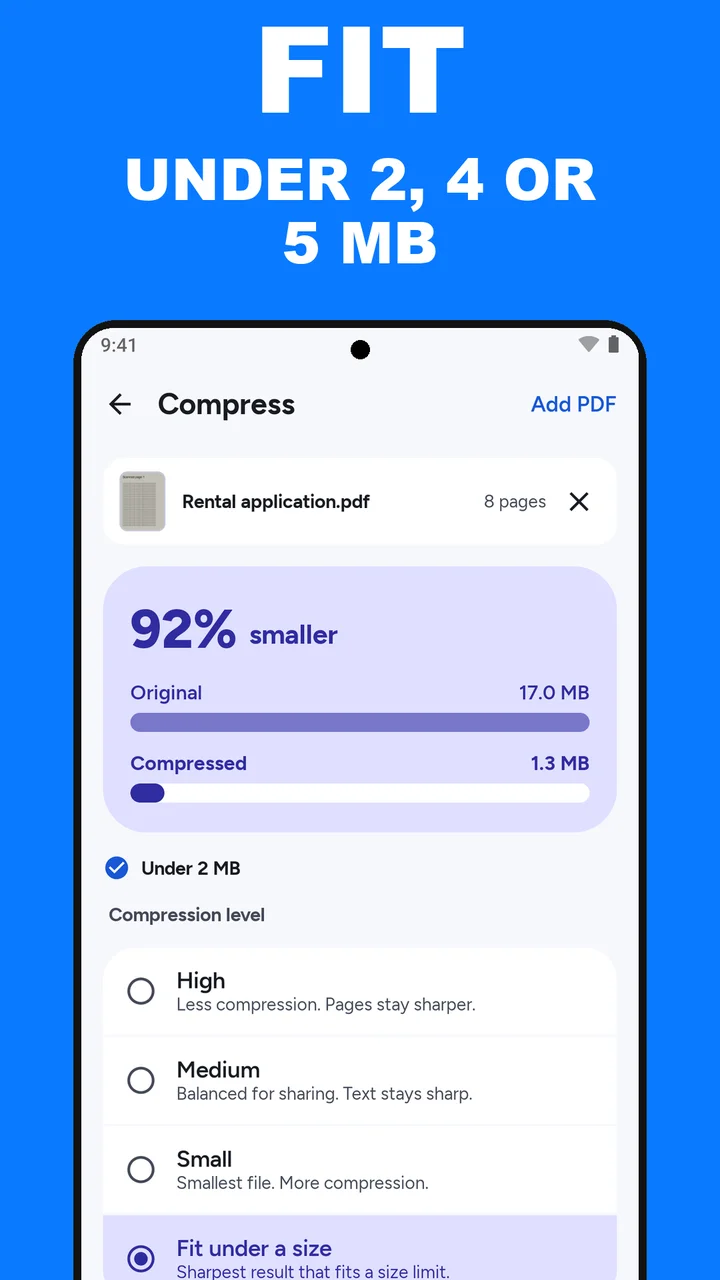
- Choose Fit under a sizeIt is the fourth option, under High, Medium and Small: Sharpest result that fits a size limit.
- Tap Custom and type 0.2Under Target size, skip the 2 MB, 4 MB and 5 MB chips. Tap Custom and type 0.2, which is 200 KB.
- Tap CompressViaPDF tries its quality steps and keeps the sharpest one under 0.2 MB. The card shows the Original and Compressed sizes.
- Read the line under the cardUnder 0.2 MB means it fits. If the line names the smallest size the file can reach, send fewer pages or try Grayscale first.
- Save or ShareThe result is Compressed.pdf. Open it once to check that the text is readable. The first export is free.
Watch it in 27 seconds
The same steps as a short video. It loads from YouTube only when you press play.
Do this job on your phoneFree to download. The first export is free. Then pay once. The store shows your local price. The file stays on the device until you share it.
What the line under the card means
- Under 0.2 MB (with a check mark): the file fits. Save or Share it.
- Already under 0.2 MB: the file was small enough before you started. Send the original as it is.
- “Marksheet.pdf can’t get under 0.2 MB. The smallest it gets is 310 KB.”: even the strongest step is too big for 200 KB. The next section has what to do.
The file name and the numbers in that last line are examples. In the video, a two-page 1.5 MB marksheet comes down to 187.2 KB, 88% smaller. Your file will differ.
If it can’t get under 200 KB
At that point Compress has done what it can. What is left is to change the file itself:
- Send fewer pages. Exam and job forms often ask for one document, not the whole bundle you scanned. Extract the pages the form asks for with Split, then fit the shorter Split.pdf under 0.2 MB.
- Drop the colour. If the portal does not need colour, run Grayscale, then fit the Grayscale.pdf it creates. Grayscale does not promise a smaller file, so read the line under the card again.
- Upload in parts. If the portal takes more than one file, split the PDF into parts (each Split run saves one PDF), add them all to Compress and fit them together. Each file is fitted under 0.2 MB on its own.
If none of that works, the limit is too tight for this document. Check whether the portal has a separate route for longer files, or ask the office that runs it. A scan forced smaller at any cost can become unreadable, and an unreadable marksheet or certificate gets rejected too.
Read the rule on the form. Some portals limit each file. Others limit all attachments together. ViaPDF fits each file under the limit on its own, so if two files must share 200 KB, type 0.1 for each.
Why not just zip it? Neither Android nor iPhone has a built-in setting that shrinks a PDF. File managers such as Samsung My Files on Android, or Files on iPhone, can compress a file into a ZIP archive, but a form that asks for a PDF will not take a ZIP.
Which PDFs can reach 200 KB
- Typed documents, such as a resume or letter exported from a word processor, are often small already. If the line says Already under 0.2 MB, send the original: it keeps its selectable text, and a compressed copy does not.
- A scan of a page or two, such as a marksheet or a certificate, has a fair chance. Zoom into the result and check that small print, stamps and signatures are still readable.
- Long scans and pages full of photos are where 200 KB usually falls short. Each page is an image, and a few pages rarely fit in 200 KB at a readable quality.
If the form asks for less, see compress a PDF to 100 KB, the smallest size Custom accepts. For a 500 KB limit, see compress a PDF to 500 KB, and for 1 MB, see compress a PDF to 1 MB or less.
Compress a PDF to 200 KB FAQ
Do I type 200 or 0.2?
Type 0.2. Custom takes the size in MB, from 0.1 to 100 MB, and 200 KB is 0.2 MB.
Why not just choose Small?
Small gives you the smallest file, but it does not aim at your limit. Fit under a size keeps the sharpest quality step under 0.2 MB, so the file stays as clear as the limit allows.
Will the text still be readable?
Often, for a page or two. On a longer scan, a 200 KB limit forces ViaPDF to drop more detail. Open Compressed.pdf and zoom in on the small print, stamps and signatures before you send it.
Can I select the text in the compressed file?
No. Compress writes each page as an image. If the form needs searchable text, run OCR, tap Save searchable PDF, and fit that file.
Is my file uploaded, and is it free?
Compression runs on your phone, and the file leaves the device only when you tap Save or Share. Downloading is free and the first export is free. After that, a one-time purchase unlocks unlimited Share and Save. The store shows your local price.