Why the comparing should stay on the phone
A private, offline duplicate photo finder does its work on the device. The phone compares each picture and shows you the groups, so your library never has to travel to a server. That matters, because a gallery holds receipts, whiteboards and passport pages as well as holiday shots.
What SparePix does and does not touch
- Comparing runs on the phone. The Access screen says that comparing happens on this phone, with no account and no uploads.
- No account. You start the app without signing up for anything.
- No ads. The paywall says so, next to the line about uploads.
- Photos only. SparePix reads the phone's photo library. It does not scan apps, files, downloads or the cache.
- Partial access. Select photos on the Access screen limits the scan to the photos you pick.
How to check any photo app yourself
Do not take a listing's word for it. Three quick checks work on any app.
- Data safety. On the Google Play page, open the Data safety section and read what the developer declares about the data the app collects and shares.
- Permissions. In Android settings, open the app's info page and look at its permissions. Each one should have a reason you can name. SparePix declares internet access, and the purchases it offers run through Google Play.
- Airplane mode. Turn on airplane mode, open the app, and run a scan. The scan and review code makes no network calls, so a scan should finish with the phone offline. Buying the unlock needs a connection.
Find and delete duplicates in SparePix
These steps use the labels on each screen. Every delete waits for your confirmation.
- Choose what the app can seeOn the Access screen, tap Allow all, or tap Select photos to let SparePix scan only the photos you pick.
- Start the scanOn Home, tap Scan photos. When it finishes, the card shows the MB ready to review and how many similar groups it found.
- Pick a groupTap Start swiping to move through groups one at a time, or tap See all and open a group under Similar shots.
- Read the keeperThe photo tagged Keep · suggested is the one SparePix would keep. Tap any other photo to switch it between Keep and Delete.
- Decide for the groupKeep best keeps the suggested photo and marks the rest. Keep all leaves every photo in the group where it is.
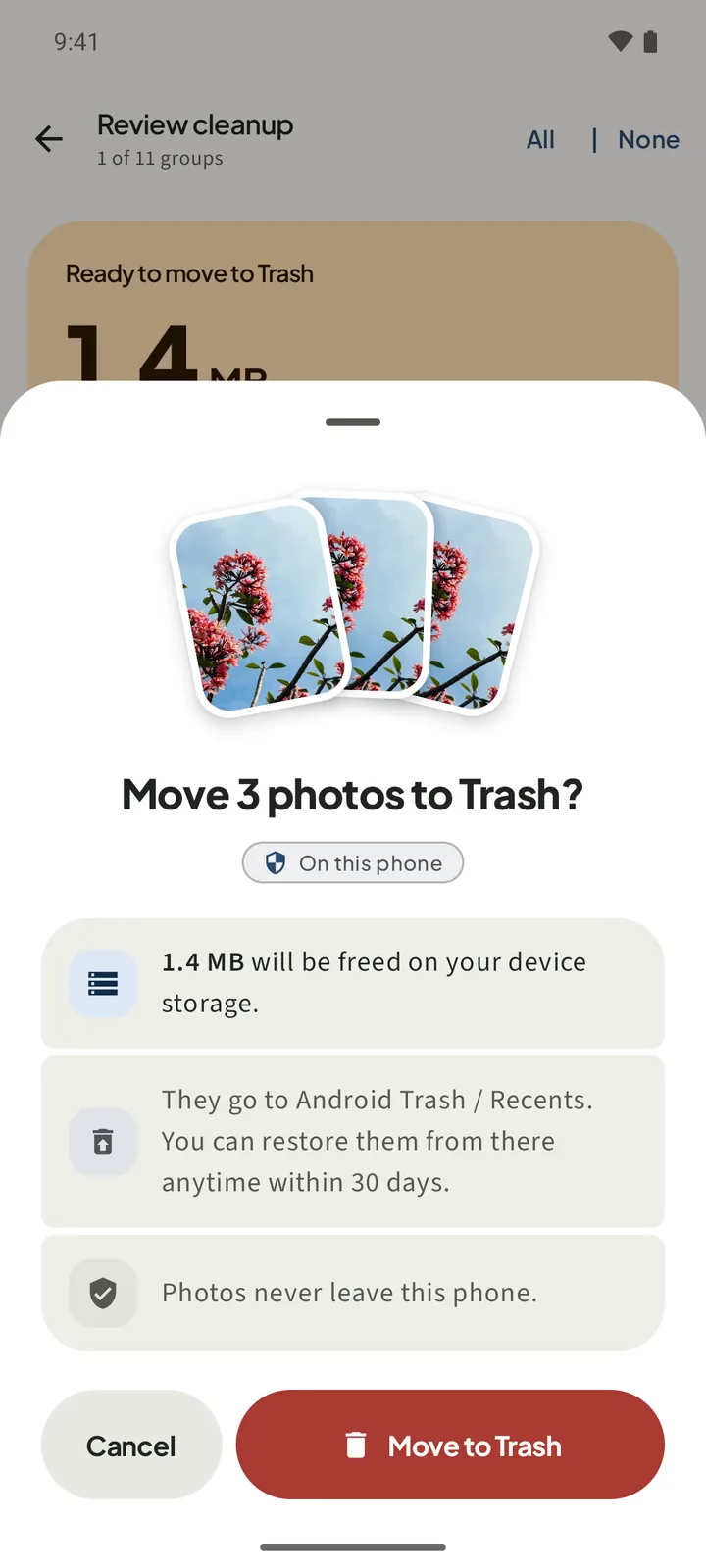
- Confirm on the sheetRead the count in the bar at the bottom, tap Move to Trash, then tap Move to Trash on the sheet to confirm.
Where deleted photos go
The app uses the phone's own Trash on Android 11 and later. The sheet says the photos can be restored from Android Trash / Recents within 30 days. On Android 10 and older, the sheet says Permanent delete, and the photos cannot be restored from Trash.
If you delete photos in another gallery app, check that app's own trash folder too, such as the one in Google Photos or Samsung Gallery.
How to do the job without SparePix
You can do this with nothing new installed. It takes longer, because you do the comparing yourself.
- Go to the shooting dayOpen your gallery app and scroll to the day you took the pictures. Burst frames and re-saves tend to land on the same day.
- Zoom in on each pairOpen two frames that look alike. Zoom in on edges and text, and see which one is sharper.
- Select only the sure copiesSelect the copies you are certain about and use the delete option in your gallery app. Do not select a whole day at once.
- Look in the trash folderOpen the trash folder in the same app and restore anything you removed by mistake before it is emptied.
The manual route does not group similar frames or total the space before you delete. Those are the two jobs SparePix does on the phone.
Questions about a private finder
How can I tell that my photos stay on the phone?
Read the Data safety section on the Google Play page, then turn on airplane mode and run a scan.
Does the app show ads?
The paywall says No ads, no account, no uploads. Data safety on Google Play lists the rest.
Will it still work in airplane mode?
Scanning and reviewing make no network calls in this app, so they should work offline. Unlocking goes through Google Play and needs a connection.
Does it look at my apps, files or downloads?
No. SparePix reads the photo library only. It does not scan apps, files, downloads or the cache.
Can I find duplicates without installing anything?
Yes. Use the gallery app you already have, compare pairs by eye, and check its trash folder afterwards. It is slower, and it does not group near-copies for you.
Related: delete duplicate photos on Android, free up space from photos on Android, and recover deleted photos from Trash on Android.
Try it offlineTurn on airplane mode before you open the app. Scanning and reviewing are always free, and the first 15 deletes are free too.