Keep one photo from each group, not the whole pile
A duplicate photo is one of two things. It is an exact copy, the same file saved twice. Or it is a near-copy: a frame from the same burst, a re-save of a photo you already have, or a slight crop of one moment. Both kinds fill storage, and both are easy to find once something groups them for you.
SparePix groups both kinds. In each group it suggests one photo to keep, and you decide the rest. This guide shows the steps in the app, and then how to do the job by hand without it.
What counts as a duplicate in SparePix
- Exact copies are the same photo saved more than once. They appear as their own group.
- Similar photos are bursts, re-saves, and slight crops. They appear as similar groups.
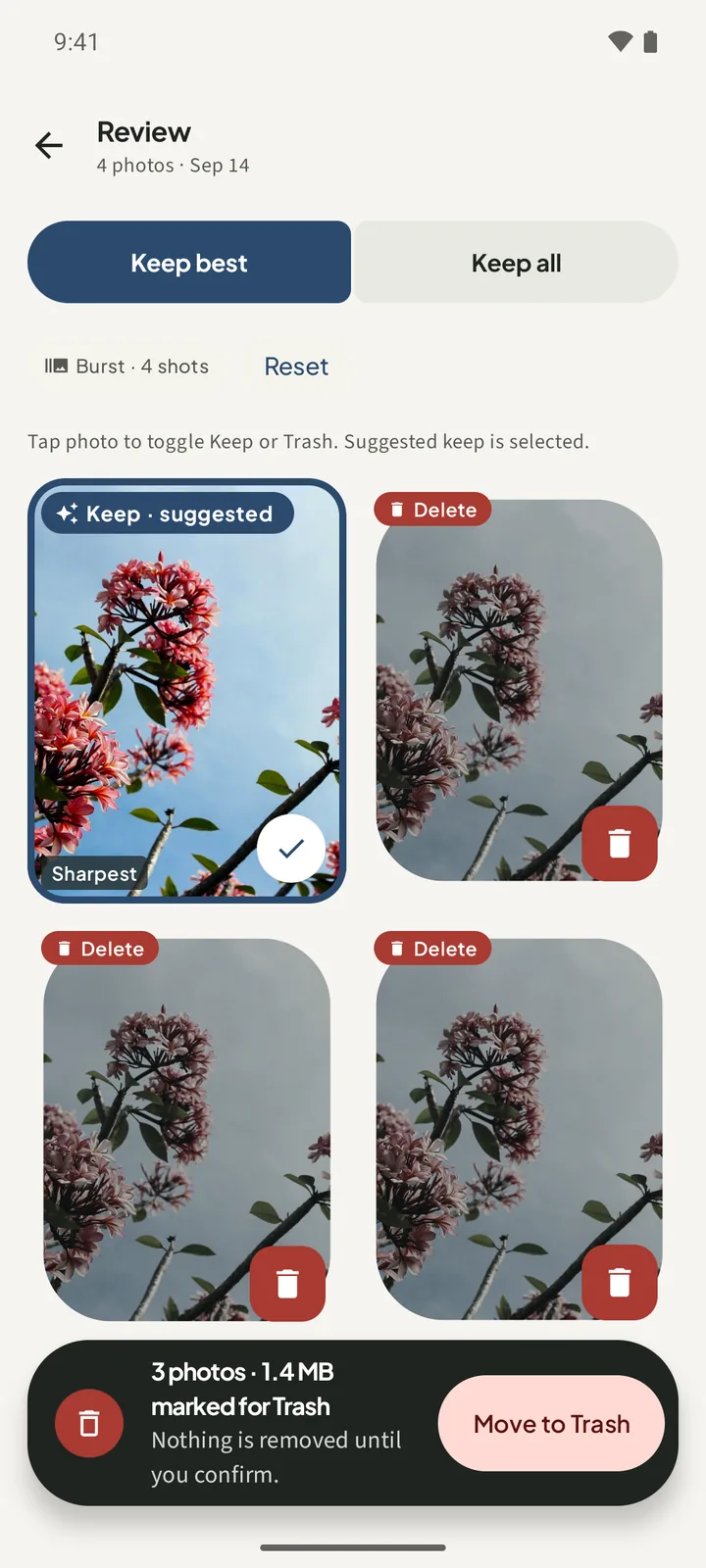
- Each group marks one photo as Keep · suggested. A photo can also carry a Sharpest tag. You can change either choice.
How to delete duplicate photos in SparePix
- Open SparePix and allow accessTap Allow all, or Select photos to scan only the photos you pick. SparePix scans only what you grant.
- Scan your photosOn Home, tap Scan photos. When the scan finishes, the card shows the MB to review and how many similar groups it found.
- Open a groupTap Start swiping to go through the groups one at a time, or tap See all. Open a group under Similar shots.
- Check the suggested keeperThe photo marked Keep · suggested is the one SparePix would keep. Tap any other photo to toggle between Keep and Delete.
- Set the groupKeep best keeps the suggested photo and marks the rest for Trash. Keep all clears the marks, so every photo stays.
- Confirm the deleteThe bar at the bottom shows how many photos and MB are marked. Tap Move to Trash, check the count and MB on the sheet, then tap Move to Trash again.
Look at the sheet before you confirm. The sheet shows the count and the MB that will be freed. Read the line about where the photos go, then decide.
Check where the photos go
What happens after you confirm depends on your Android version, and the sheet tells you which case applies:
- Android 11 and later: the sheet says the photos go to Android Trash / Recents. The app says you can restore them from there within 30 days.
- Android 10 and older: the sheet says Permanent delete and that the photos cannot be restored from the app.
The sheet also says Photos never leave this phone.
How to delete duplicate photos without SparePix
You can do the job with the gallery app already on your phone. It takes longer, because you compare the photos yourself.
- Find the dayOpen the gallery app and go to the day the copies were taken. Copies often sit next to each other in the grid.
- Compare each pairOpen each copy and look at the time and the size. Keep the version you want, and check that the frames really match before you go on.
- Select and deleteLong-press each copy you do not need, select it, and use the delete icon. Work through one day at a time.
- Check the TrashOpen the Trash or Recently deleted album in your gallery app and check it before you empty it. Each app keeps deleted photos for a different time.
The manual method works, but it does not group near-copies for you, and it does not show the MB before you delete. That is the part SparePix does on the phone.
Before you delete anything
- Check that a copy is not the only one you have, especially photos other people sent you.
- Review one group at a time. A group of similar photos can include two different moments that look alike.
- Review only the groups you want. Leave the rest for later.
Delete duplicate photos on Android FAQ
Will SparePix delete the wrong photo?
No photo is removed until you tap Move to Trash and confirm on the sheet. You can change the suggested keeper on any group, and Keep all leaves a group untouched.
Does it find exact duplicates only?
No. SparePix groups exact copies, and it also groups similar photos: bursts, re-saves, and slight crops. Each group is a suggestion you review.
Does it upload my photos?
No. Comparing runs on your phone. SparePix does not upload your library, and it has no account.
Can I get the photos back?
On Android 11 and later, a confirmed delete moves the photos to Android Trash / Recents, and the app says you can restore them within 30 days. On Android 10 and older the delete is permanent after you confirm, and the sheet says so.
Does it work if I allow only some photos?
Yes. SparePix scans only the photos you grant, and the Home screen shows a Partial access card to say so.
Is it free?
Scanning and reviewing are free, with 15 free photo deletes in total. A one-time unlock removes the delete limit. There is no subscription.
Related: find similar photos, clean up burst photos, and recover deleted photos from Trash.
Do this on your phoneFree to download. Scanning and reviewing are free, with 15 free deletes. A one-time unlock removes the limit. Photos stay on the device.