If you have too many burst photos, the cause is usually one moment captured many times. A burst is a run of frames taken quickly, one after another, and most of them look almost the same. Each frame is a separate file, so a short burst can fill more space than the single photo you wanted.
What the Sharpest tag means
In a burst group, one photo carries the Keep · suggested label and a Sharpest tag. That photo is SparePix's suggested keeper. It is a starting point, and you can change it on any frame.
SparePix picks the suggested keeper by pixel size first, then by file size. Sharpness only breaks a tie, so the tag does not promise the sharpest frame. It is not a face check either.
Check faces and eyes before you choose
Sharpness is not the same as the best expression. The sharpest frame can be the one where someone blinked. Open each frame at full size and check every face and pair of eyes before you accept the suggestion.
Long-press a photo to open it on its own. The Inspect screen shows one large photo with a label such as Photo 2 of 4. Tap Keep this shot or Mark delete there, then go back to the group.
How to clean up one burst in SparePix
- Open SparePix and allow accessOn the access screen, tap Allow all, or tap Select photos to choose the photos SparePix can scan.
- Scan your photosOn Home, tap Scan photos. The Similar shots card then shows how many groups it found and the MB to review.
- Open the burstTap See all, then open a group under Similar shots. The group opens on the Review screen with a chip such as Burst · 4 shots.
- Check the suggested keeperThe photo marked Keep · suggested carries a Sharpest tag. Tap any other photo to switch it between Keep and Delete.
- Compare faces and eyesLong-press a photo to open it in Inspect. Check each frame at full size, then tap Keep this shot or Mark delete.
- Set the groupKeep best returns to the suggested keeper and marks every other frame for Trash. Keep all removes all marks from the group.
- Confirm the deleteCheck the bar along the bottom for the count. Tap Move to Trash, then confirm on the sheet.
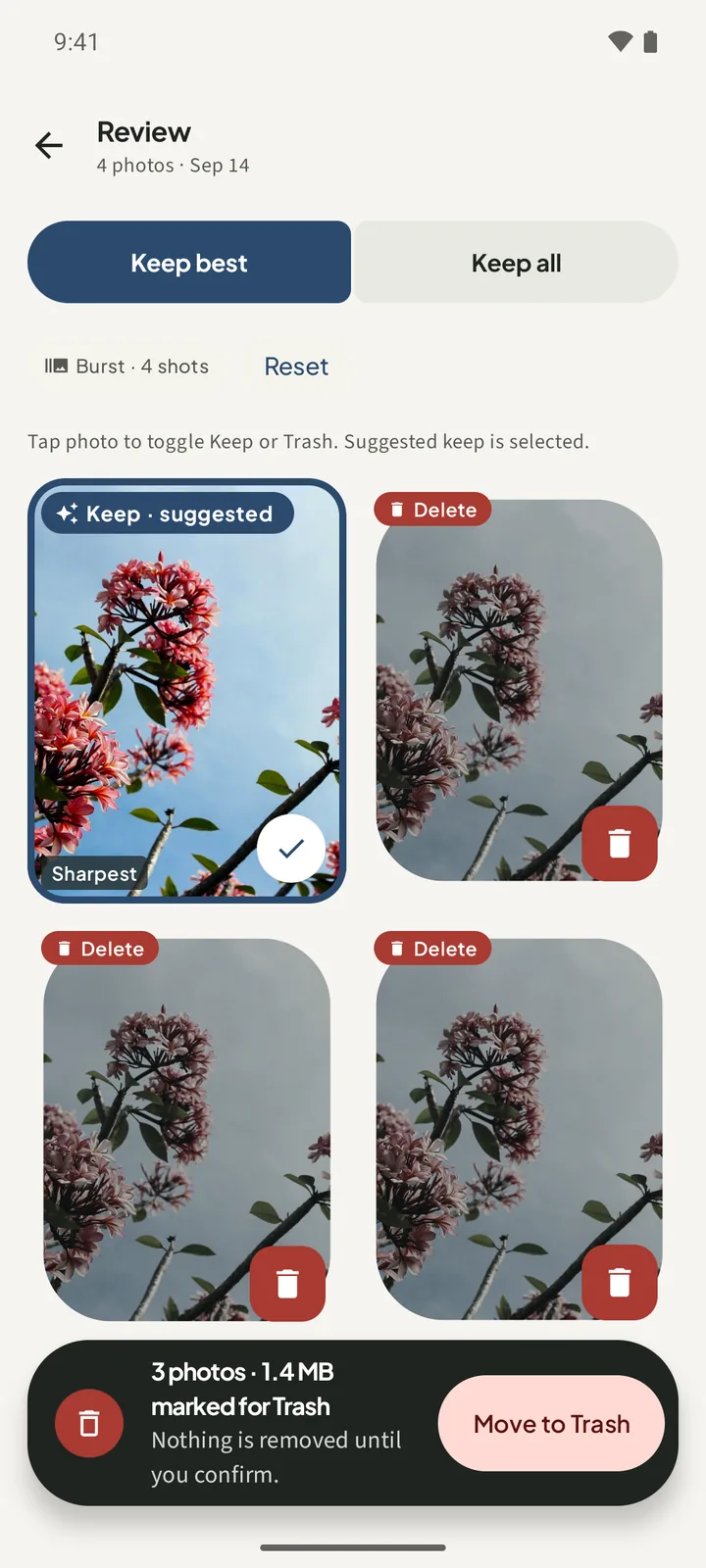
A group keeps at least one frame. If a tap would mark every frame for Trash, SparePix shows the message Keep at least one copy. Tap another photo to keep that one instead.
Where the confirmed frames go
Nothing is removed until you tap Move to Trash and confirm on the sheet. The sheet shows the count, the MB and where the photos go:
- Android 11 and later: the sheet says the photos go to Android Trash / Recents, where you can restore them within 30 days.
- Android 10 and older: the sheet says the delete is permanent, and its button reads Delete permanently.
The sheet also says Photos never leave this phone.
How to clean up burst photos without SparePix
You can handle a burst with the gallery app already on your phone. It takes longer, because you compare the frames yourself.
- Find the burstOpen the gallery app and scroll to the time the frames were taken.
- Look at each frameOpen each frame at full size and zoom in on faces and eyes. Note the frames where everyone looks right.
- Pick the keeperChoose the frame you want to keep. Select the others and use the delete option in your gallery app. Confirm if the phone asks.
- Check the TrashOpen the Trash album in your gallery app before you empty it, so you can still reach a frame you removed by mistake.
This works for a short burst. It does not group frames or show the MB before you delete.
Before you delete anything
- Check every frame in a group, not only the one with the Sharpest tag.
- Make sure the frame you mark is not the only photo of a moment you care about.
Burst photo questions on Android
Which photo does SparePix keep from a burst?
The one marked Keep · suggested. It is chosen by pixel size, then file size, and sharpness only breaks a tie.
Can I keep more than one frame from a burst?
Yes. Tap each frame to switch it to Keep. A group always keeps at least one photo.
Why does a frame I like have no Sharpest tag?
The tag only appears on the suggested keeper. It disappears once that photo is marked for Trash.
Does SparePix check faces or who blinked?
No. It does not look at faces, eyes or expressions, so check them yourself in Inspect.
What if I change my mind after I tap Keep best?
Tap Reset in the Review screen header. It returns the group to the suggested keeper and marks the other frames for Trash.
Try one burst on your phoneScanning and reviewing are free, with 15 free deletes. Photos stay on the device.