Clear the old screenshots one month at a time
Screenshots build up quietly. Most are saved once for a ticket, a map or a chat, used for a day, and then forgotten. To delete old screenshots on Android without losing one you still need, work through them in small batches. SparePix groups them for you, and you decide what goes. Comparing happens on your phone.
The first part of this guide follows the steps in the app. Further down is the same job done with the gallery app and nothing else.
What the Screenshots card shows
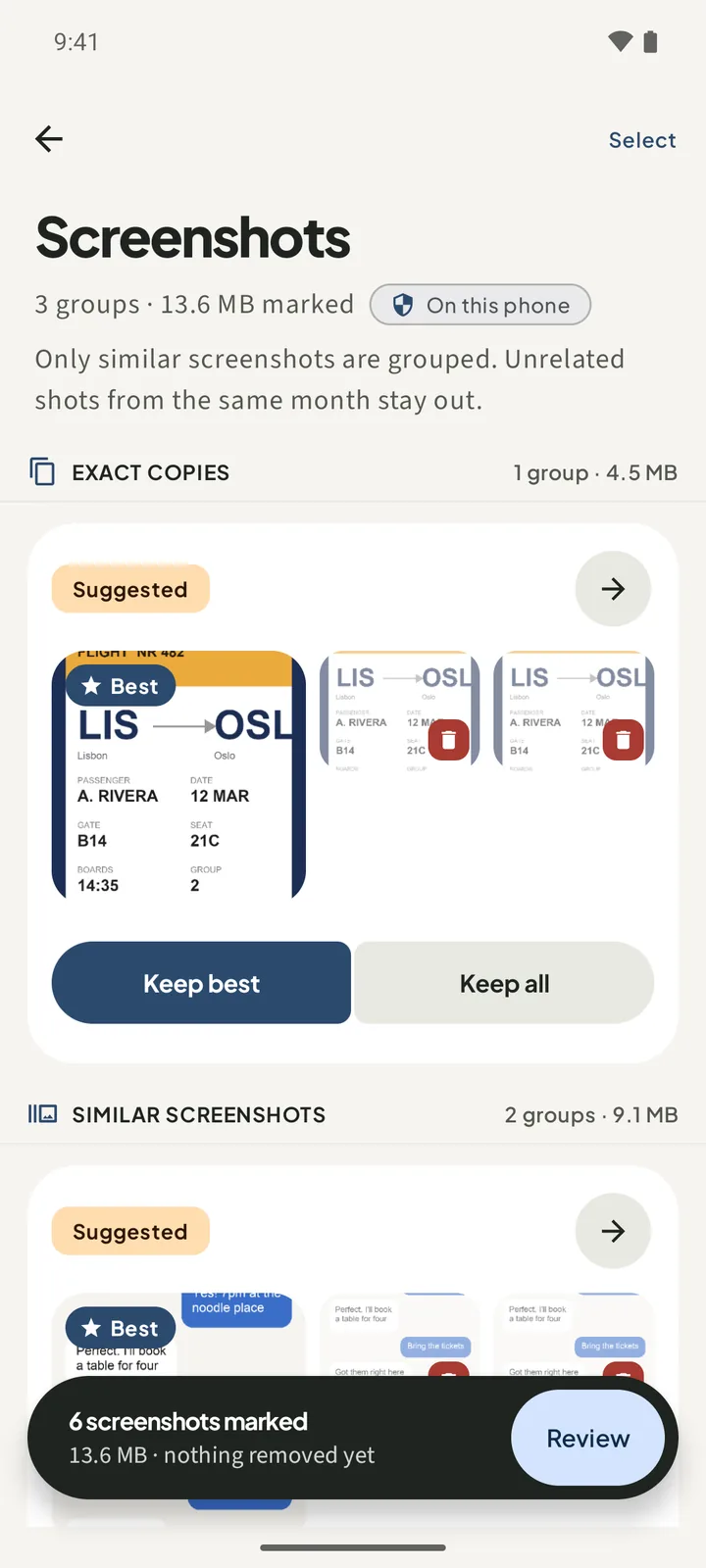
On Home, the Screenshots card gives the number of screenshot groups and the MB to review. If the scan found none, the card says No screenshot groups yet. Tap Review screenshots to open the list.
- Exact copies are the same screenshot saved more than once. They are listed under Exact copies.
- Similar screenshots are captures that look alike, such as two shots of the same screen. They are listed under Similar screenshots.
- Months keep each batch small. Each card is named for the month its screenshots were taken, such as June 2024.
Only similar screenshots are grouped. Unrelated shots from the same month stay out of the groups, so a single boarding pass or a one-off map is never pulled into a set of look-alikes.
How to delete old screenshots in SparePix
- Open SparePix and allow accessTap Allow all, or Select photos to choose what SparePix can look at. It scans only what you grant.
- Scan your photosOn Home, tap Scan photos. When the scan finishes, the Screenshots card shows its groups and the MB to review.
- Open the Screenshots listOn the Screenshots card, tap Review screenshots. The list title reads Screenshots.
- Review a monthTap Review group on a card to open it. Tap a screenshot to switch it between Keep and Mark for Trash.
- Keep a whole group if neededKeep all on a card leaves every screenshot in that group unmarked.
- Review the marked totalThe bar at the bottom shows how many screenshots are marked, with the MB and the words nothing removed yet. Tap Review.
- Confirm the deleteOn Review cleanup, tap the Move to Trash button. On the sheet, check the count and MB, then tap Move to Trash again.
Read the sheet before you confirm. It shows the number of photos and the MB that will be freed, and it says where they go.
Where deleted screenshots go
The sheet changes with your Android version, so read the line that applies to your phone.
- Android 11 and later: the screenshots move to Android Trash / Recents, and you can restore them from there within 30 days.
- Android 8 to 10: the button reads Delete permanently, and the sheet title asks whether to delete the photos permanently.
On either version, the sheet also says that photos never leave this phone.
Screen recordings are not covered
SparePix works on screenshots and photos only. It does not group screen recordings or videos, so an old recording stays where it is until you deal with it in the gallery app. The app also leaves apps, files, downloads and the cache alone.
How to delete old screenshots without SparePix
The gallery app on your phone can do this too. You will not get the group view or the MB total, so expect the job to take longer.
- Open the Screenshots albumIn the gallery app, open the Screenshots album. Start with the oldest month you can find.
- Go through one monthOpen each screenshot and ask whether you still need the information in it. Keep anything you may need again.
- Select the restLong-press one screenshot, tap the others you do not need, and use the delete icon.
- Empty the Trash with careOpen the Trash album in the gallery app and check it. Emptying it removes the screenshots for good.
Doing it by hand means you judge each screenshot yourself. SparePix does the grouping and the MB total on the phone, and it removes nothing until you confirm.
Before you delete old screenshots
- Check screenshots of codes, bookings and addresses before you mark them.
- Review one month at a time. Two captures that look alike can show two different steps of the same flow.
- If you are not sure about a group, use Keep all and come back to it later.
Delete old screenshots on Android FAQ
Can I clear one month and leave the rest?
Yes. Each month is its own group on the Screenshots list. Review the months you want and leave the others for later.
Does SparePix decide what goes?
No. It suggests a keeper in some groups, and you can change any screenshot. Nothing is removed until you tap Move to Trash and confirm on the sheet.
Are screen recordings included?
No. SparePix covers screenshots and photos only. Screen recordings and videos are not grouped, so check them in your gallery app.
How long do deleted screenshots stay in Trash?
On Android 11 and later, they go to Android Trash / Recents, and the app says you can restore them within 30 days. On Android 8 to 10, the delete is permanent after you confirm.
Can unrelated screenshots end up in one group?
Only similar screenshots are grouped. Unrelated shots from the same month stay out of the groups.
Related: free up space from photos, delete duplicate photos, and recover deleted photos from Trash.
Start with one monthScanning and reviewing are free. Photos stay on the device, and nothing is removed until you confirm.