Start with the photos, not the whole phone
Photos often take up a large share of an Android phone's storage. To free up space from photos on Android, see how much the pile holds, remove the copies you do not need, then empty Trash so the space actually comes back.
SparePix covers photos only. It does not scan or change apps, files, downloads or the cache.
Read the MB to review before anything moves
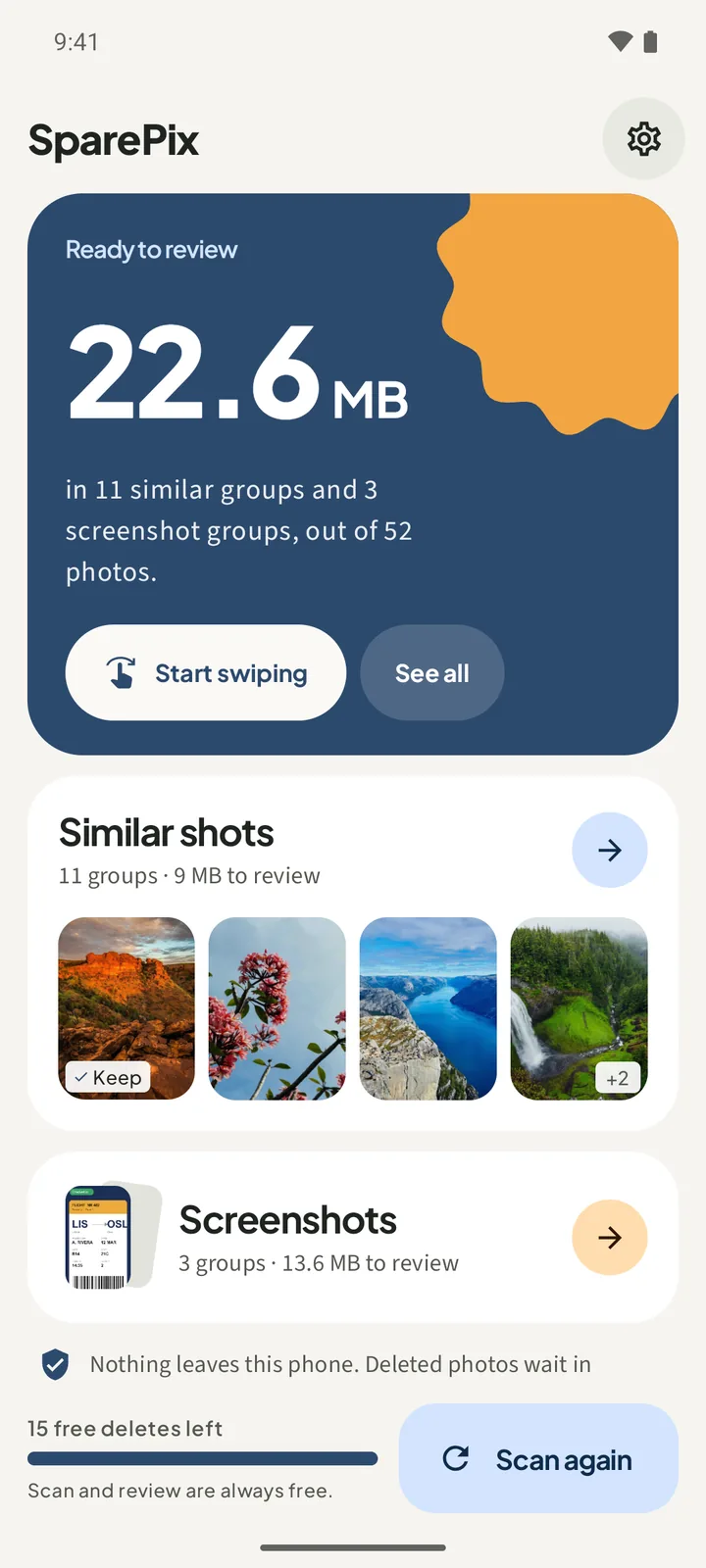
After a scan, the Ready to review card on Home shows the total MB in the groups found. The Similar shots and Screenshots cards show the MB to review for each.
That is a count of what the groups hold, not a change to your storage. Nothing is deleted yet.
How to free up space from photos in SparePix
- Open SparePix and allow accessTap Allow all, or Select photos to limit the scan to the photos you pick.
- Scan your photosOn Home, tap Scan photos. After the first scan, the same button reads Scan again.
- Read the MB on HomeThe Ready to review card and the group cards show the MB to review before you mark anything.
- Open the groupsTap See all to list the groups, or Start swiping to go through them one at a time. Open a group and find the photo marked Keep · suggested.
- Choose what goesTap a photo to switch it between Keep and Delete. Keep best keeps the suggested photo and marks the rest for Trash. Keep all keeps every photo.
- Move the marked photos to TrashThe bottom bar shows the photos and MB marked. Tap Move to Trash, read the sheet, then tap Move to Trash to confirm.
Empty Trash for the space to come back
A confirmed delete does not free the space straight away. On Android 11 and later, the photos go to Android Trash / Recents, where they wait for 30 days. The space comes back when Trash is emptied.
On Android 10 and older, the sheet's button reads Delete permanently, and the photos cannot be restored from the app.
Other honest ways to free photo space
- Back up first. Copy the photos you want to keep to a computer or another place you control before a large delete.
- Delete large videos by hand. SparePix does not handle video, so open them in your gallery app and delete the ones you no longer need.
- Check the gallery's own Trash. If your gallery app has a Trash or Recently deleted album, check it before you empty it.
Free up space from photos without SparePix
You can do this with the gallery app already on your phone. It takes longer, and it will not show the MB to review.
- Check the storage pageOpen Android Settings and look at the storage page to see how much room photos take.
- Work one month at a timeOpen the gallery app and pick one month. Smaller piles are easier to check.
- Select the photos you do not needLong-press a photo to select it, add the other photos you do not need, then use the delete icon. Keep one copy from each set.
- Empty TrashEmpty the Trash or Recently deleted album in your gallery app. Then check Android Trash / Recents and empty it when you are sure.
The manual method does not group similar photos or show the MB to review. That is the part SparePix does on the phone.
Before you delete anything
- Keep the only copy of anything you cannot replace, including photos that other people sent you.
- Go in small steps. A group of similar photos can hold two moments that only look alike, so check each one.
- Stop when you have enough space. You do not have to clear every group in one session.
Free up space from photos on Android FAQ
Does SparePix free space from apps or downloads?
No. SparePix covers photos only. It does not scan or change apps, files, downloads or the cache.
Why has my storage not changed after I deleted photos?
On Android 11 and later, a confirmed delete goes to Android Trash / Recents first. The space comes back when that Trash is emptied.
Can SparePix free space from videos?
No. SparePix works on photos only. Delete large videos by hand in your gallery app.
How many photos can I delete for free?
The free version includes 15 photo deletes in total. The Home screen shows how many are left. The one-time unlock removes the limit.
Should I back up photos before I free up space?
Yes, it is a sensible step. Copy the photos you want to keep somewhere you control. SparePix never uploads your library.
Related: delete duplicate photos, delete old screenshots, and recover deleted photos from Trash.
Do this on your phoneFree to download. Scanning and reviewing are free, with 15 free deletes. A one-time unlock removes the limit. Photos stay on the device.