Start with the free part
SparePix does not ask for money before you have seen what it finds. Scanning your photos is free, reviewing the groups it builds is free, and you can make 15 photo deletes at no cost. Comparing happens on your phone, so the photos stay there.
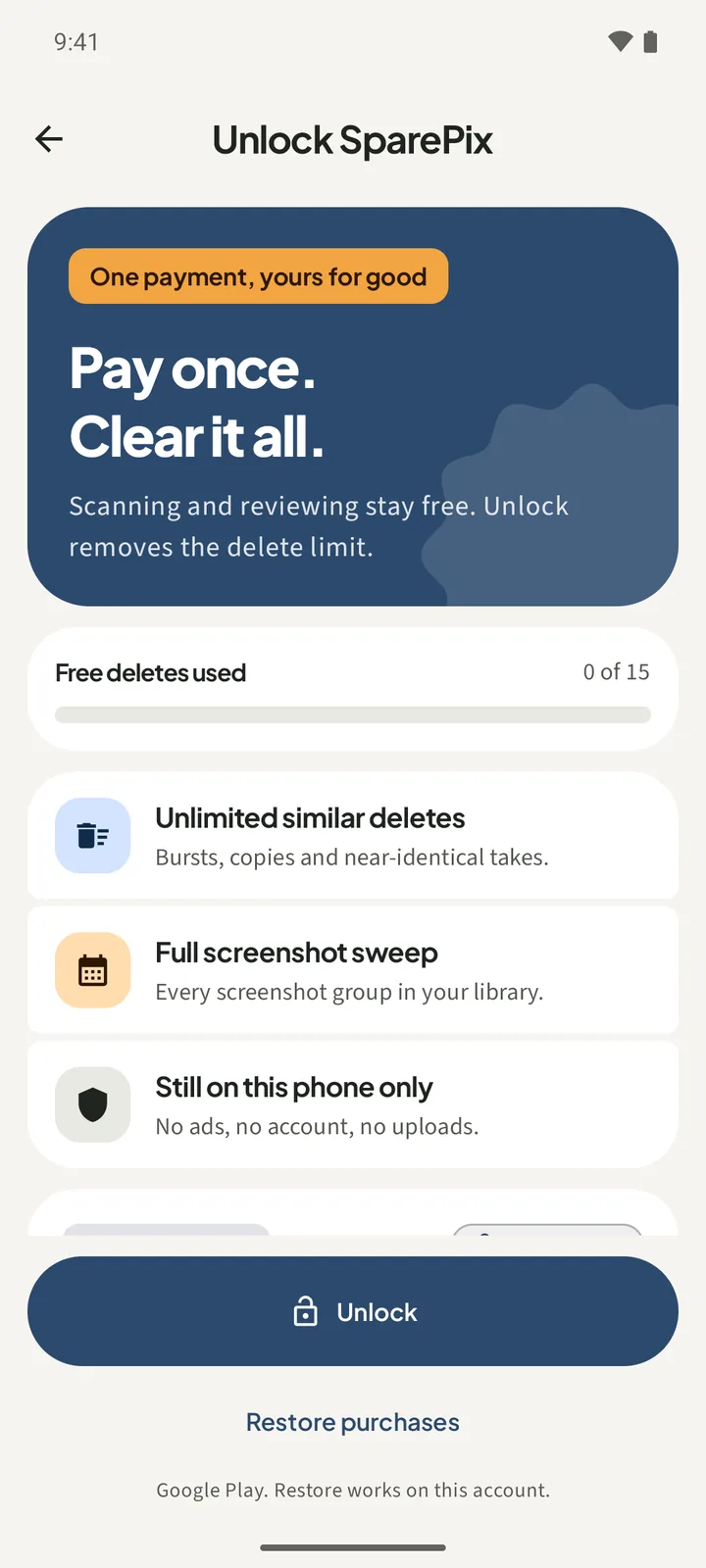
Deleting is the only limited step. Home shows a counter, 15 free deletes left, with the note Scan and review are always free. The paywall shows the same limit as Free deletes used, 0 of 15. The 15 is a total counted across the app.
What the one-time unlock adds
The unlock removes the 15-delete limit. The paywall lists three points:
- Unlimited similar deletes, for bursts, copies and near-identical takes.
- Full screenshot sweep, which covers every screenshot group in your library.
- Still on this phone only, with no ads, no account and no uploads.
The Unlock button shows the price from Google Play. Settings describes the purchase as a one-time unlock with no recurring subscription.
Restore a purchase you already made
Restore purchases appears on the paywall, below the Unlock button, and in Settings under Purchase. The paywall footer reads Google Play. Restore works on this account.
How to find duplicates in SparePix
- Allow photo accessTap Allow all, or tap Select photos if you want to choose which photos SparePix can scan. Comparing happens on this phone.
- Scan from HomeTap Scan photos on Home. When the scan finishes, the Similar shots and Screenshots cards show how many groups were found.
- Pick a groupTap Start swiping to move through the groups one at a time, or tap See all to open the full list.
- Read the suggested keeperThe photo marked Keep · suggested is the one SparePix would keep. Tap any other photo to switch it between Keep and Delete.
- Set the whole groupKeep best marks every other photo for Trash. Keep all leaves every photo in the group.
- Confirm on the sheetThe bottom bar shows how many photos and MB are marked. Tap Move to Trash, read the count on the sheet, then tap Move to Trash to confirm.
Count before you confirm. The sheet states how many photos and how many MB will move to Trash. Nothing is removed until you confirm.
What happens at the 15-delete limit
When the free deletes are used up, the Move to Trash step opens the paywall instead of the confirm sheet. You can still scan and review as before.
Check the pricing before you install a photo cleaner
Use these questions on any photo cleaner, including one you are only considering:
- Can you scan and review for free, before any purchase?
- Does the app state how many deletes are free?
- Is the price a one-time purchase, or a plan that renews? Look at the paywall and the store listing for the word subscription.
- Does the paywall say what the purchase adds, in plain words?
- Is there a Restore purchases option?
- Does the app say whether photos are uploaded, and whether an account is needed?
- Does the app show ads?
If the answers are not clear from the app and its store page, wait before you install.
How to do it without SparePix
You can find and remove copies with the gallery app already on your phone. Nothing groups them for you, so the job takes longer, but it costs nothing and needs no install.
- Start with one monthOpen your gallery app and scroll to a month when you took many shots. Copies often sit next to each other in the grid.
- Judge each pairOpen the copies one at a time and compare the frame, the time and the size. Choose the one to keep.
- Select the restLong-press a copy you do not need, select the others, and use the delete icon in the gallery app.
- Check the TrashGoogle Photos keeps deleted photos in its Trash for a while before it removes them. Check the Trash in your gallery app before you empty it.
By hand you have to judge every pair yourself, and a large library takes many sessions. That is the trade-off for skipping the install.
Common questions about SparePix pricing
Is there a subscription in SparePix?
No. The purchase is a one-time unlock, and Settings describes it with no recurring subscription.
How many photos can I delete before paying?
15 photo deletes in total. Scanning and reviewing have no limit.
What happens when the 15 free deletes are used?
The Move to Trash step opens the paywall instead of the confirm sheet. You can still scan and review.
Do I need to pay to see what SparePix finds?
No. Scanning is free, and Home shows the similar and screenshot groups before any purchase.
How do I restore an unlock I already bought?
Tap Restore purchases in Settings under Purchase, or on the paywall. The paywall footer says Google Play. Restore works on this account.
Related: delete duplicate photos, free up space from photos, and a private photo cleaner that works offline.
Try the free part firstScanning and review cost nothing. The unlock is a single purchase, so you can decide after you have seen the groups.