Two places to delete them, and one kind nobody shows you
To delete WhatsApp photos on Android, open WhatsApp, tap the three dots, and go to Settings, Storage and data, Manage storage. Open a chat, select the photos, and tap the trash icon. You can also delete them from the WhatsApp Images album in your gallery app, which removes the files and leaves the chat in place.
Many WhatsApp photos are copies of photos you already have: the one your camera took, and the smaller copy a chat sent back to you. WhatsApp and the gallery do not put those two side by side. SparePix does. It groups the WhatsApp copy with the camera photo, suggests keeping the camera copy, and waits for you to confirm the delete. Scanning is free and runs on this phone.
How to delete WhatsApp photos in WhatsApp
- Open Manage storageIn WhatsApp, tap the three dots, then Settings, Storage and data, and Manage storage.
- Start with the biggest itemsThe top of the screen lists items such as Larger than 5 MB and Forwarded many times. Below them, your chats are sorted by the space they use.
- Open a chat and select the photosTap a chat to see its photos and videos. Tap and hold one photo to select it, then tap the others, or use Select all.
- Delete and confirmTap the trash icon and read the dialog before you confirm. A delete inside WhatsApp does not go to your gallery's Trash, so check the selection first.
Use this for photos that exist only in WhatsApp, such as forwards. It also covers the copies of photos you sent.
How to delete WhatsApp photos from the gallery
Photos you receive are saved to an album named WhatsApp Images. The menu names differ a little by phone:
- Samsung Gallery: open Albums, then WhatsApp Images. Long-press a photo, select the rest, and tap Delete. The photos go to the Recycle bin.
- Google Photos on Pixel: open Google Photos, find WhatsApp Images under the folders on this device, select the photos, and move them to the trash.
- Xiaomi Gallery: open Albums, then WhatsApp Images, select the photos, and tap Delete.
A gallery delete removes the file from the phone. The message stays in the chat, but the photo may no longer open from it.
How to find the WhatsApp copies of photos you already have
The album does not tell you which photos you also have in the camera folder. SparePix compares the photos on the phone and groups the copies:
- Open SparePix and allow accessTap Allow all so the scan covers both your camera photos and the WhatsApp album. Select photos scans only the photos you pick.
- Scan your photosOn Home, tap Scan photos. Comparing runs on this phone, and nothing is removed during the scan.
- Open a groupTap See all and open a group under Similar shots. When the copies sit in more than one folder, the group says Same photo in 2 folders, with the real count.
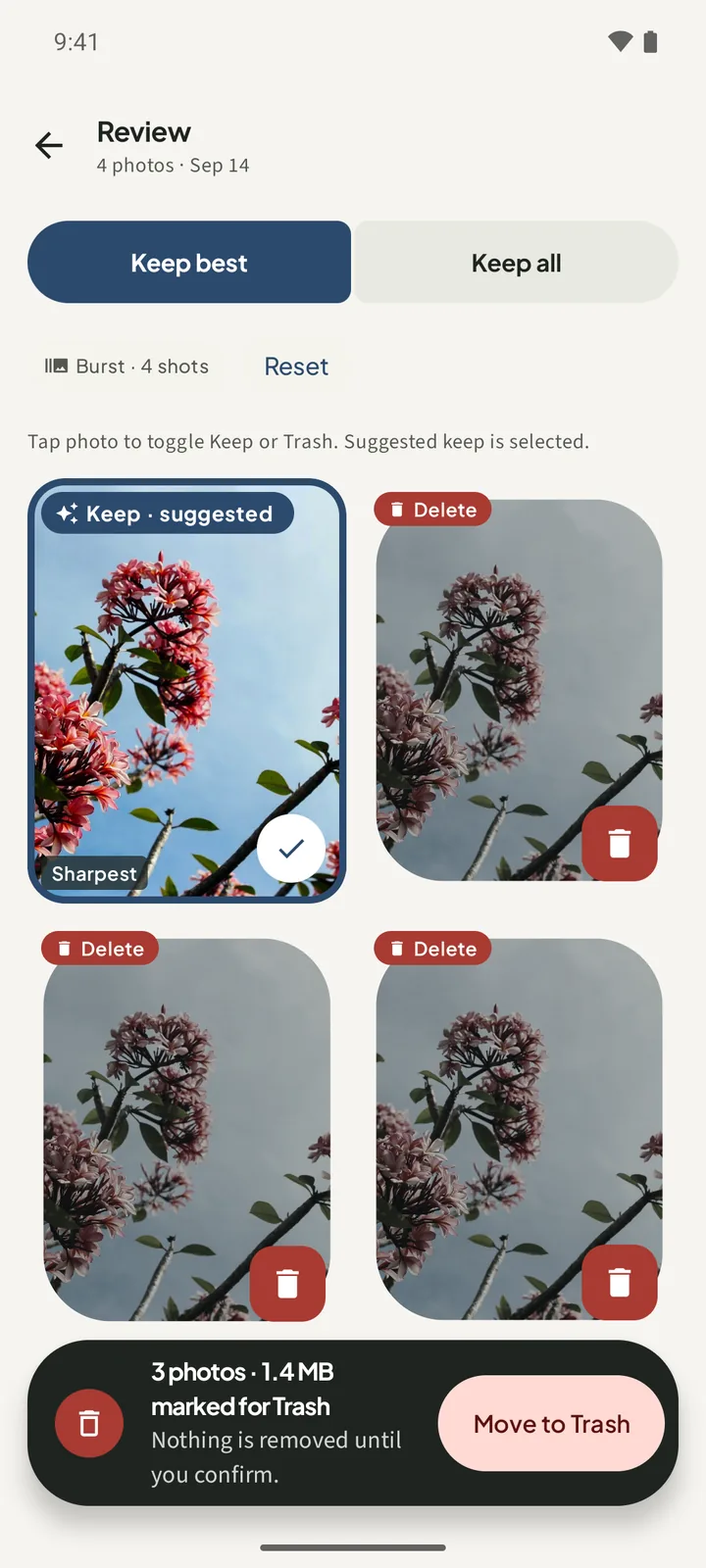
- Check the suggested keeperThe camera copy is kept over a WhatsApp or other chat copy, and it is marked Keep · suggested. One word on that tile says why it was picked. Tap any photo to change the choice.
- Set the groupKeep best keeps the suggested photo and marks the rest for Trash. Keep all clears the marks, so every photo stays.
- Confirm the deleteThe bar at the bottom shows how many photos and MB are marked. Tap Move to Trash, check the count and MB on the sheet, then tap Move to Trash again.
Do this on your phoneFree to download. Scanning and reviewing are free, with 15 free deletes. A one-time unlock removes the limit. Photos stay on the device.
What SparePix groups, and what it does not
- It groups copies. Exact copies and similar photos, such as a re-saved copy of a photo you took, join one group. Each group is a suggestion you review.
- It leaves single photos alone. A WhatsApp photo with no lookalike on the phone stays out of the groups. Delete those in Manage storage or in the gallery.
- It is not a WhatsApp cleaner. SparePix covers photos only. It does not scan or change apps, files, downloads or the cache, and it does not handle video.
- It scans only what you grant. If you allow access to only some photos, SparePix scans only those.
Stop WhatsApp from filling the gallery again
- Media visibility: in WhatsApp, open Settings, then Chats, and turn off Media visibility. Newly received photos stop appearing in the gallery.
- Media auto-download: in Settings, Storage and data, choose when photos download by themselves. With Photos unchecked, a photo is saved only when you tap it.
Before you delete anything
- A photo someone sent you may be the only copy you have. Check before you clear a whole chat.
- A delete inside WhatsApp does not go to your gallery's Trash. A delete in SparePix on Android 11 and later does, and you can recover deleted photos from Trash within 30 days.
Delete WhatsApp photos on Android FAQ
Does deleting a photo from the gallery delete it from WhatsApp?
It removes the file from your phone. The message stays in the chat, but the photo may no longer open from it.
Can SparePix delete all my WhatsApp photos?
No. SparePix groups exact copies and similar photos only. A WhatsApp photo with no lookalike on the phone stays out of the groups.
Which copy does SparePix suggest keeping?
The camera copy is kept over a WhatsApp or other chat copy. A favorite photo is always the one suggested to keep. You can keep a different photo in any group.
Can I get a deleted WhatsApp photo back?
A photo deleted in SparePix on Android 11 and later goes to Trash, and the app says you can restore it within 30 days. A delete inside WhatsApp does not go to that Trash.
Is SparePix free?
Scanning and reviewing are free, with 15 free photo deletes in total. A one-time unlock removes the delete limit, and Google Play shows your local price. There is no subscription.
Related: delete duplicate photos, find similar photos, and free up space from photos.