App timers in Digital Wellbeing
Open Settings > Digital Wellbeing & parental controls, tap an app on the dashboard, and set an App timer. When the time runs out, Android pauses the app until midnight.
It works, but the timer can be removed from the same screen in a few taps, and there is no way to block an app during set hours or to make yourself wait before turning it off.
What a limit needs to hold
- A pause screen that appears on top of the app, not a reminder you can swipe away.
- Blocked hours for nights or work, not just minutes per day.
- Some friction before you can switch it off: a PIN, or a short wait.
How to set an app limit in Muto
- Allow Usage access and Display over other appsMuto uses Usage access to know which app is open, and Display over other apps to show the pause screen. It never asks for Accessibility.
- Tap Limits, then New limitOpen the Limits tab and tap New limit. You can also open an app from Today and tap Set a limit.
- Choose an appPick the app. Muto shows how long you used it today and this week.
- Set the daily minutesChoose anywhere from 5 minutes to 3 hours a day.
- Add blocked hours (optional)Under Blocked hours, choose Work or Custom, for example 22:00 to 07:00, to block the app at those times.
- Pick a mode and saveSoft · 5 more minutes lets you ask for more time a few times a day. Hard · PIN keeps it blocked unless you enter your PIN. Tap Save limit.
Watch it in 17 seconds
The same steps as a short video. It loads from YouTube only when you press play.
What happens when the time is up
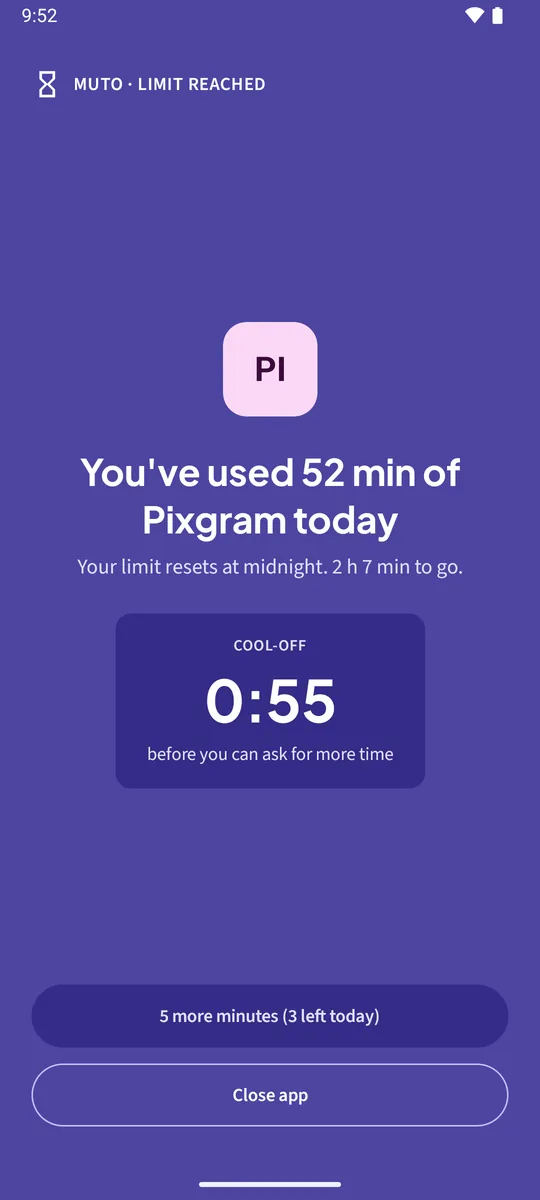
Muto shows a pause screen over the app: limit reached, and when it resets. In Soft mode you can take 5 more minutes, 3 times a day. In Hard mode the app stays blocked for the rest of the day, or until the blocked hours end, unless you enter your PIN. Close app takes you home.
Cool-off before disabling makes you wait 10 minutes before you can switch a limit off, so a tired moment doesn’t undo it.
No Accessibility service. Most blockers ask for Accessibility, which lets an app read your screen. Muto only reads which app is open from Android’s usage statistics, and has no internet permission.
Free and Full
The free version includes one app limit in Soft mode. Muto Full, a one-time purchase, gives unlimited limits and Hard mode.
A limit is friction, not a prison: you can still uninstall Muto or revoke its permissions. For most people a pause at the right moment is enough.
Keep the notifications. Know where the time goes.Free to try: 3 days of notification history, 7 days of screen time and one app limit. Muto Full is a one-time purchase, and Google Play shows your local price.
App time limits: questions
Can I limit an app only at night?
Yes. Under Blocked hours choose Custom and set the times, for example 22:00 to 07:00. You can combine it with daily minutes.
What if I need the app for a moment?
In Soft mode, take 5 more minutes (3 times a day). In Hard mode, enter your PIN.
Does it need Accessibility?
No. Muto uses Usage access and Display over other apps.
Can I limit more than one app?
The free version has one limit. Muto Full has unlimited limits.