What a split is for
People search split PDF Android when a file has more pages than they are allowed to send. A 40-page packet when the other person asked for the signature page. A bank statement when only one month matters. Splitting means keeping the pages you need and leaving the rest behind.
ViaPDF does that on your phone. You either tap the pages or type a range. The pages you keep are saved as one new PDF. The original file is not modified.
Pages mode and Range mode
- Pages. Tap thumbnails. Useful when you can see the page you want and the numbering in your head is unreliable.
- Range. Type 1-3, 5, 8-10. Useful when you already know the page numbers.
Both modes export the selection as one PDF. ViaPDF does not burst a document into a separate file for every page. If you need two different excerpts, run Split twice. If you need those excerpts put back together with something else, merge the results.
Need a single page? That is the same tool. The short version is in extract pages from a PDF.
How to split a PDF in ViaPDF
- Open SplitOn Actions, tap Split, then choose the PDF.
- Choose Pages or RangePages lets you tap thumbnails. Range lets you type pages such as 1-3, 5, 8-10. The app tells you how many pages the PDF has.
- Select what to keepIn Pages mode, tap the pages you want. Use Select all if you are starting from the full file and then turning pages off. The header shows how many are selected.
- Run SplitViaPDF writes the selected pages into one new PDF. It does not overwrite the original.
- Share or SaveSend Split.pdf or save it to Files. The first export is free.
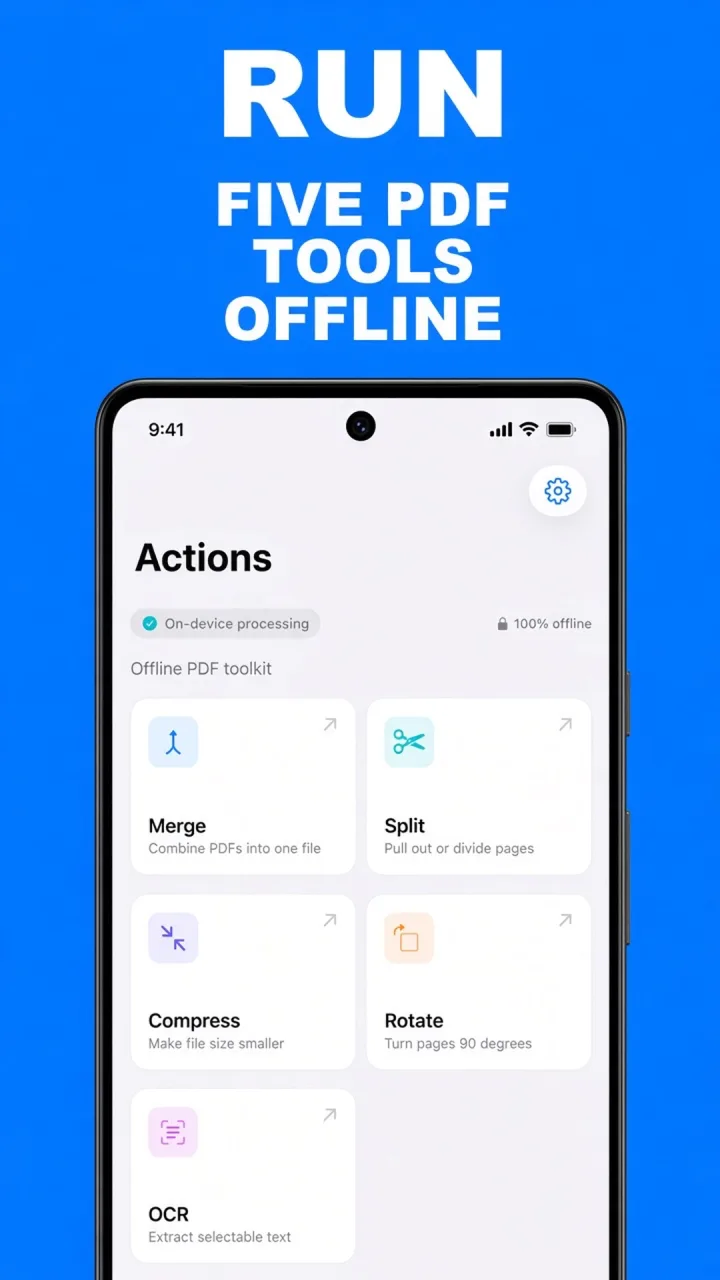
Do this job on your phoneFree to download. The first export is free. Then $14.99 once. The file stays on the device until you share it.
Split a PDF on Android FAQ
Does Split make one file per page?
No. The pages you select are exported as one PDF. If you need two different excerpts, run Split once for each set of pages.
Can I type a page range?
Yes. Switch Mode to Range and enter pages the way the field shows: 1-3, 5, 8-10.
Will the original PDF change?
No. Split writes a new file. The PDF you opened stays as it was.