Page order is part of merging, even for one file
Reorder PDF pages sounds like a separate product. In practice you have one file, two pages are swapped, or a scanned sheet landed at the front and belongs at the back. You want a new PDF in the right order and you want the original kept.
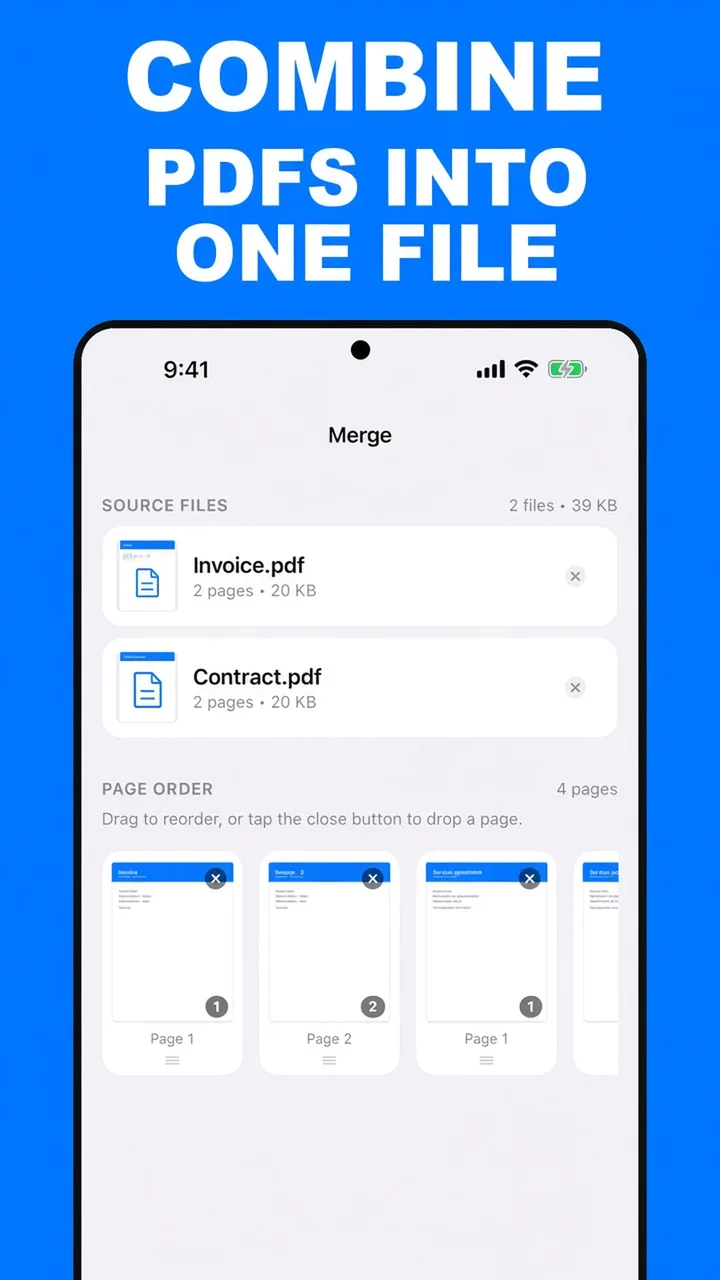
ViaPDF does this in Merge. Add the PDF. The page-order strip lists every page. On Android, arrows move a page and × removes it from the export. Then you merge that order into a new file. Adding a second PDF is optional. The full merge flow, including several files, is in merge PDF files on Android.
Reorder versus extract
- Reorder when most of the pages stay, and a few need to move or disappear.
- Extract when you only want a short run, such as pages 8–10, and the rest should not be in the file at all. Use extract pages from a PDF.
The strip is the document. The order you see before you tap Merge is the order in the file you share.
How to reorder pages in ViaPDF
- Open MergeYou do not need a second PDF. Tap Merge on Actions.
- Add the fileTap Add PDFs and choose the document whose pages are in the wrong order.
- Move pagesOn Android, use the arrows on the page strip to move a page earlier or later.
- Drop pages you do not wantTap × on a thumbnail to leave that page out of the new file. The original PDF is not edited.
- Export the new orderTap Merge, then Share or Save. The first export is free.
Do this job on your phoneFree to download. The first export is free. Then $14.99 once. The file stays on the device until you share it.
Reorder PDF pages FAQ
Do I need two PDFs to reorder one file?
No. Merge accepts a single document. Add it, arrange the pages, and export.
Can I delete a page this way?
Yes. Tap × to drop it from the new PDF. For keeping a range and discarding everything else, Split is often faster. See extract pages.
Can I reorder pages from two files at once?
Yes. Add both, then arrange the combined strip. That is the same flow as merging.