Extract means “send only this”
Extract pages from a PDF is the request behind a lot of split searches: “I need page 4” or “I need the last three pages, not the appendix.” You want a new, short PDF, and you want the long file left alone.
In ViaPDF that job is the Split tool. Selected pages export as one PDF. You can tap thumbnails or type a range. There is no upload, and the first Share or Save is free.
Range syntax that matches the app
The range field’s own example is 1-3, 5, 8-10. Commas separate groups. A hyphen is a run of pages. The line under the field tells you how many pages the PDF has, so a typo like page 40 in a 12-page file is easier to catch.
If you are splitting for a different reason, the overview of both modes is in split a PDF on Android. If the excerpt is still too large to send, compress it with reduce PDF file size.
One selection, one new file. Extracting pages 2–6 produces a single PDF of those pages, not five separate files.
How to extract pages in ViaPDF
- Open Split and choose the PDFTap Split on Actions. Pick the file that contains the pages you need.
- Use Range if you know the numbersSet Mode to Range. Type the pages, for example 4 or 2-6 or 1-3, 5. The screen shows how many pages the file has so you can check the numbers.
- Or tap themSet Mode to Pages and tap each thumbnail you want to keep. The count of selected pages updates as you tap.
- Export the selectionRun Split. ViaPDF writes one new PDF containing only those pages.
- Share just that excerptShare or Save the new file. The long original remains on your phone, unchanged.
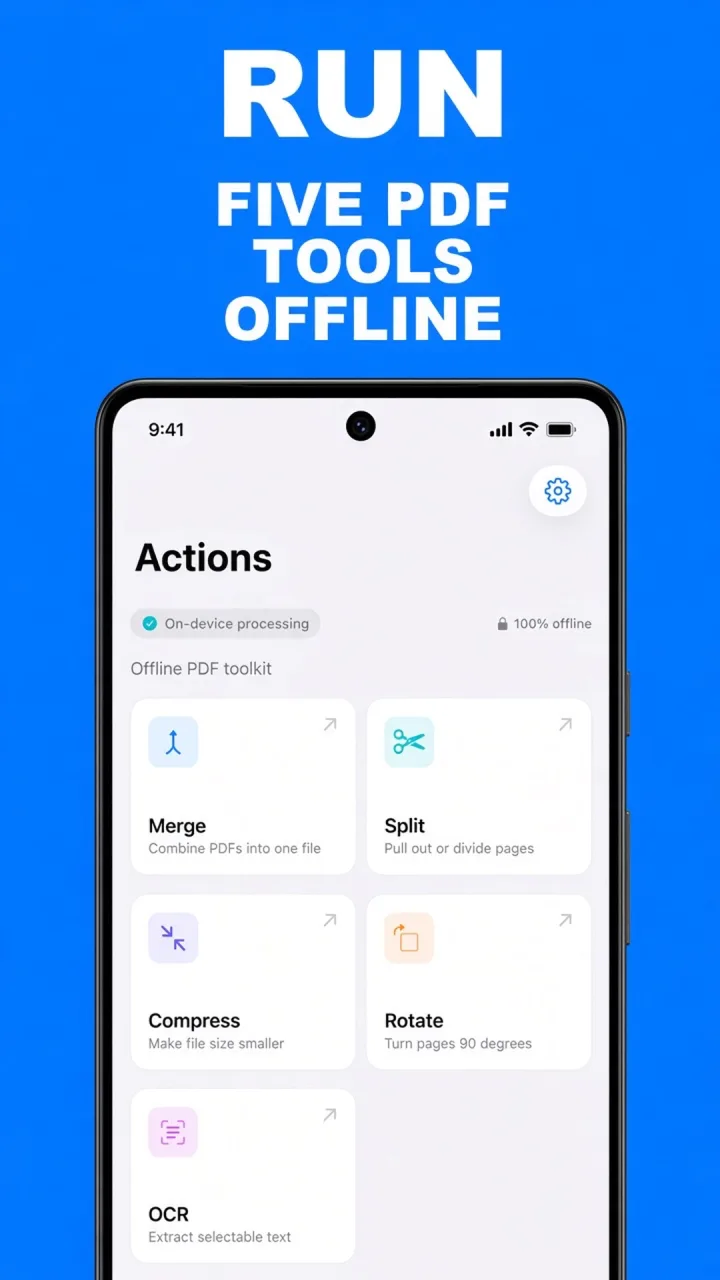
Do this job on your phoneFree to download. The first export is free. Then $14.99 once. The file stays on the device until you share it.
Extract pages from a PDF FAQ
Can I extract a single page?
Yes. In Range mode type that page number, or in Pages mode tap only that thumbnail. You get a one-page PDF.
Can I extract pages that are not next to each other?
Yes. In Range mode, separate them with commas: 1-3, 5, 8-10. In Pages mode, tap each one.
Does extract delete those pages from the original?
No. You get a new PDF. To drop pages from a copy you are about to send, you can also remove them on the Merge page strip.