Take the password off a file you already have the password for
Most people searching remove a password from a PDF on Android have a bank statement, a payslip, or a form that asks for a password every time it is opened. They know the password. They want a copy that opens without it. ViaPDF’s Unlock tool makes that copy on your phone, with no upload and no account.
Unlock needs Android 15 or later. On Android 14 and earlier, the tool tells you it needs Android 15, and nothing else in this guide will change that. The other eleven tools in ViaPDF still work on older versions.
What Unlock does, and what it does not
- It opens a password-protected PDF with the password you type, and saves a new, unprotected copy called Unlocked.pdf.
- The original file is not changed. It stays protected, in the same place.
- It does not guess, recover, or crack a password. If you do not know the password, Unlock cannot open the file.
- It does not add a password to a PDF. ViaPDF has no tool for that.
The password is typed on your phone and used there. It is not sent anywhere, because ViaPDF has no upload at all.
If the password is wrong
A wrong password shows the message “That password didn't work.” Nothing is saved. Check for a capital letter, a space at the end, or a keyboard that autocorrected a word, and type it again. If you copy the password from a message or a note, paste it carefully.
An unprotected copy. Anyone who opens Unlocked.pdf can read it, so Share or Save it only where you are comfortable with that. Your original is untouched.
Before you start
- Android 15 or later. On Android 14 and earlier, the tool says it needs Android 15.
- You need the password. ViaPDF does not recover it.
- Files over 250 MB or over 200 pages are rejected.
- The result is a new file. Pages in it are written as images, so text is not selectable unless you run OCR and save a searchable PDF.
- The first Save or Share is free. After that, one unlock for $14.99.
How to remove a PDF password in ViaPDF
- Check you have Android 15 or later, then open UnlockUnlock works on Android 15 and later only. On the ViaPDF home screen, open the Tools tab and tap Unlock. You can also tap Open PDF first and then pick the tool.
- Choose the protected PDFPick the password-protected file from your phone.
- Type the passwordEnter the password for that file. It is used on your phone and nowhere else.
- Tap UnlockIf the password is right, ViaPDF writes an unprotected copy. If it is wrong, you see “That password didn't work.” Type it again.
- Save or ShareSave or Share Unlocked.pdf. The first export is free. The original file is not changed.
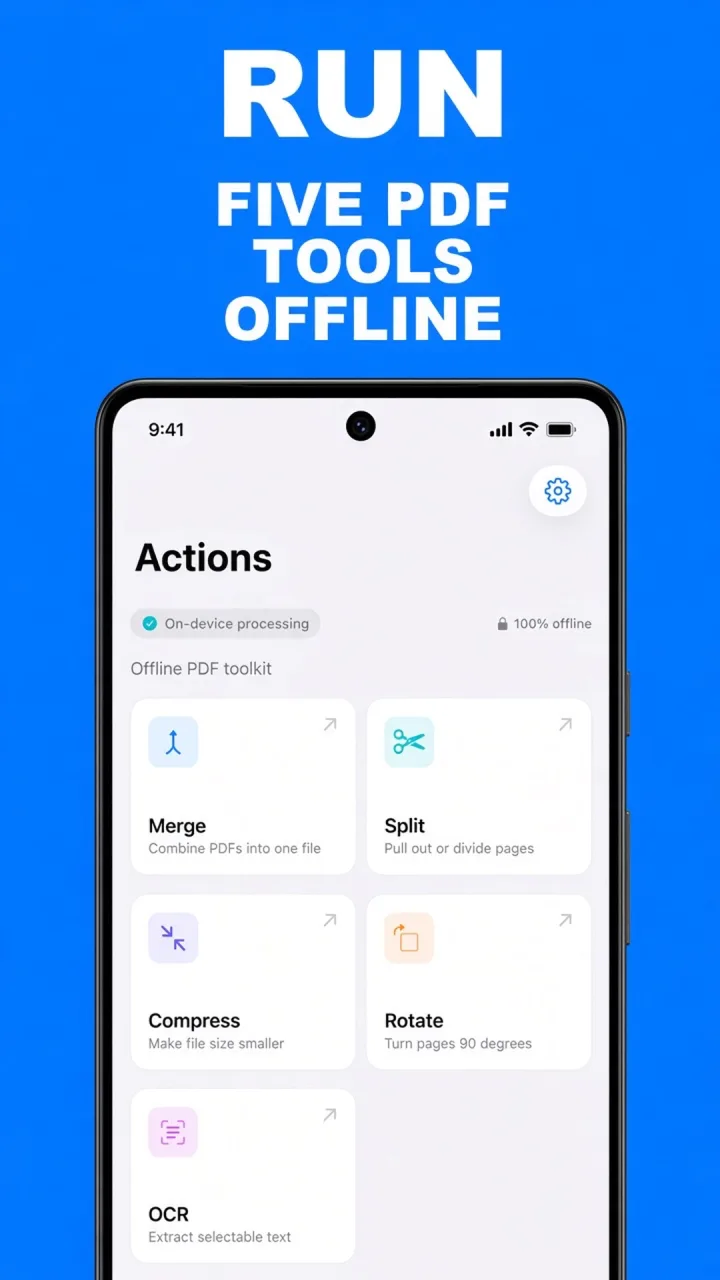
Do this job on your phoneFree to download. The first export is free. Then $14.99 once. The file stays on the device until you share it.
When the file is large or has many pages
An unlocked copy is the same document, so a long or heavy file stays long or heavy. If the copy is too big to email, run Compress on it. If you need only part of it, extract the pages you want. Both tools show you what you are about to export.
Do the unlock first. A tool cannot read the pages of a protected file until it has been opened with its password, so Unlock is the step that comes before the others.
Remove a PDF password FAQ
What if I forgot the password?
ViaPDF cannot help. Unlock does not guess, recover, or crack passwords. You must know the password to make an unprotected copy.
Does Unlock work on Android 14 or earlier?
No. Unlock needs Android 15 or later. On Android 14 and earlier the tool says it needs Android 15. The other ViaPDF tools still run on older versions.
What does “That password didn't work.” mean?
The password you typed does not match the file, so nothing was unlocked or saved. Check the spelling, capital letters, and any extra space, then try again.
Does Unlock change my original PDF or send the password anywhere?
No. You get a separate copy called Unlocked.pdf and the original is not changed. The password is used on your phone only, and nothing is uploaded.