A photo of a paper is not a PDF
A photo of a lease is crooked, it shows the table under it, and it is one file per page. Whoever asked for “a PDF” wants the pages flat, cropped and in one file.
Filetray does that with the camera you already have. On most phones it opens Google’s document scanner, which finds the page edges and crops each page for you. The pages become one PDF in your Filetray library, and the words on them can be read on the phone so you can search for them later.
Before you scan
- Put the paper on a darker, plain surface so the edges stand out.
- Use daylight or a bright room and avoid your own shadow on the page.
- Hold the phone flat above the page rather than at an angle.
How to scan a document in Filetray
- Tap Scan a documentOpen Filetray and tap Scan a document at the bottom of the library (on a brand-new library the button says Scan your first paper). Allow the camera if Android asks.
- Capture the pageHold the phone over the paper. The scanner finds the edges and crops the page. Adjust the crop if a corner is off.
- Add the other pagesIf the paper has more pages, keep scanning in the same session. Every page you add goes into the same PDF.
- Finish the scanFinish in the scanner. Filetray saves the pages and opens the new document, titled Scan.
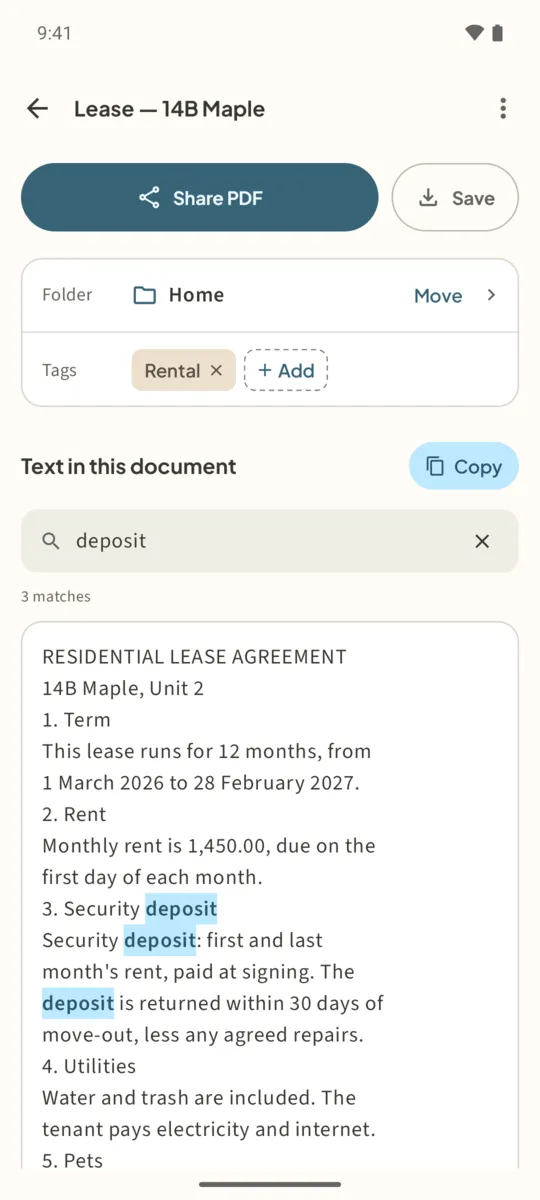
- Give it a nameTap the pencil next to the title, type something you will search for later, such as Lease — 14B Maple, and tap Rename.
- Share PDF or SaveTap Share PDF to send it by email or a messaging app, or Save to choose a folder in Files. The PDF also stays in your library.
No Google scanner on your phone? If Google’s document scanner is not available, Filetray opens its own camera instead. Tap Add page to take each photo, drag the edges or corners to crop, and tap Done to keep your pages.
What you get
A PDF with one page per scan, in the order you took them. The free version keeps up to 5 documents and adds a small “Made with Filetray” footer to the PDFs you share or save. Filetray Lifetime, a one-time purchase, removes the cap and the footer.
When the document has been read, the PDF also carries the recognized words as a hidden text layer, so other PDF apps can search it. See OCR on Android for how that works.
Need the PDF under a size limit for an upload form? Filetray does not compress files; ViaPDF can fit a PDF under 2, 4 or 5 MB on the phone.
Scan it once. Find it later.Free to download, free for up to 5 documents. Filetray Lifetime is a one-time purchase, and Google Play shows your local price.
Scan documents to PDF: questions
Is the scan saved to my gallery?
No. The pages go into your Filetray library, not your photo gallery. Use Save when you want a copy of the PDF in Files.
Can I scan a photo I already took?
Yes. Tap the photo button next to Scan a document to import pictures as a new document, or open a document, tap Pages and Add pages from photos to add them as pages.
How many pages can one scan have?
Up to 100 pages in one scanning session. You can add more pages to the same document afterwards.
Do I need an account?
No. There is nothing to sign in to, and the pages are not uploaded.