A simple system that holds up
- Folders for the big piles: Home, Car, Taxes, Warranties, Health, School.
- Tags for things that cut across folders: Rental, Kitchen, 2026, Insurance.
- Titles that say what the paper is: “Lease — 14B Maple”, “Fridge receipt”.
A document lives in one folder (or none) and can have as many tags as you like. Search looks at all three, plus the words on the page.
Set up folders and tags in Filetray
- Create a folderOn the library screen, scroll the Folders row to the end and tap New. Type a Name and tap Create.
- Scan straight into itOpen the folder and tap Scan into, followed by the folder name. New scans land in that folder. The folder menu also has Import photos.
- Move an existing documentOpen the document and tap Move on the Folder row (or Move to folder in the menu). Pick a folder, No folder, or New folder, then tap Done.
- Add tagsOn the Tags row, tap Add, type a New tag and tap Add. Tap the × on a tag to remove it.
- Rename the documentTap the pencil next to the title, or Rename in the menu. Use the words you will search for.
- Rename or delete a folderIn the folder, open the menu for Rename folder or Delete folder. Deleting a folder keeps its documents in your library.
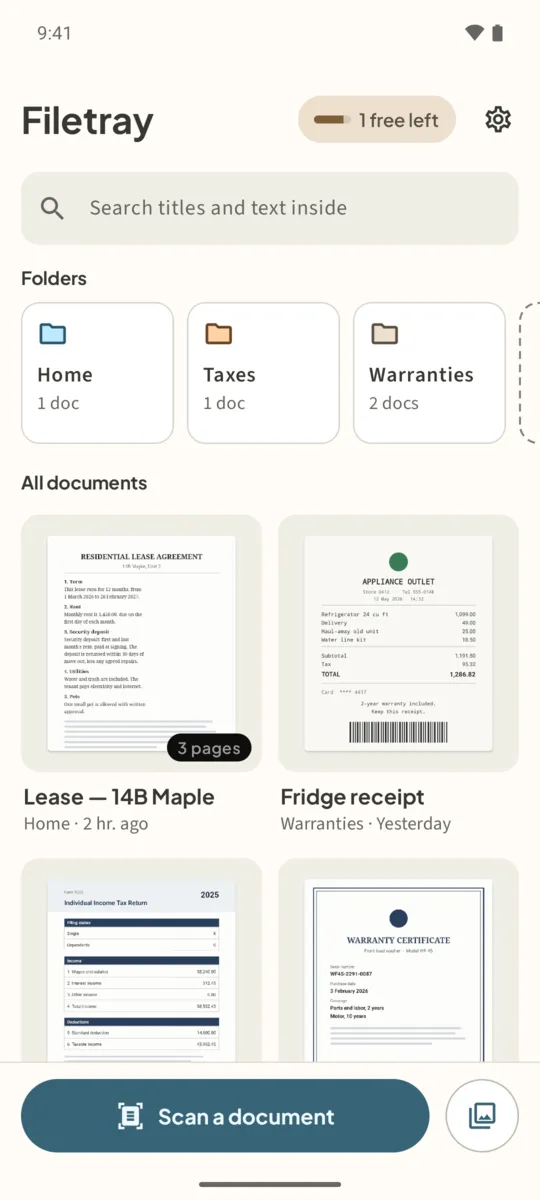
Folders and tags are free. The free version includes folders, tags, rename and moving documents. Its limit is 5 documents; Filetray Lifetime removes it.
Next: find a scanned document by a word inside it.
Scan it once. Find it later.Free to download, free for up to 5 documents. Filetray Lifetime is a one-time purchase, and Google Play shows your local price.
Organize scanned documents: questions
Can a document be in two folders?
No. A document is in one folder or in none. Use tags for anything that belongs to more than one group.
What happens to documents when I delete a folder?
They stay in your library. They just won’t be in that folder.
Can I search inside one folder?
Yes. Open the folder and tap the search icon. It looks through titles, tags and recognized text in that folder.