Pins are for the text you should never retype
Pin clipboard snippets when the same string shows up every week: office Wi-Fi, a unit address, VAT numbers, a polite “running five minutes late.” Gboard can pin a handful in its drawer. A manager should let you search, folder, and insert them from a keyboard.
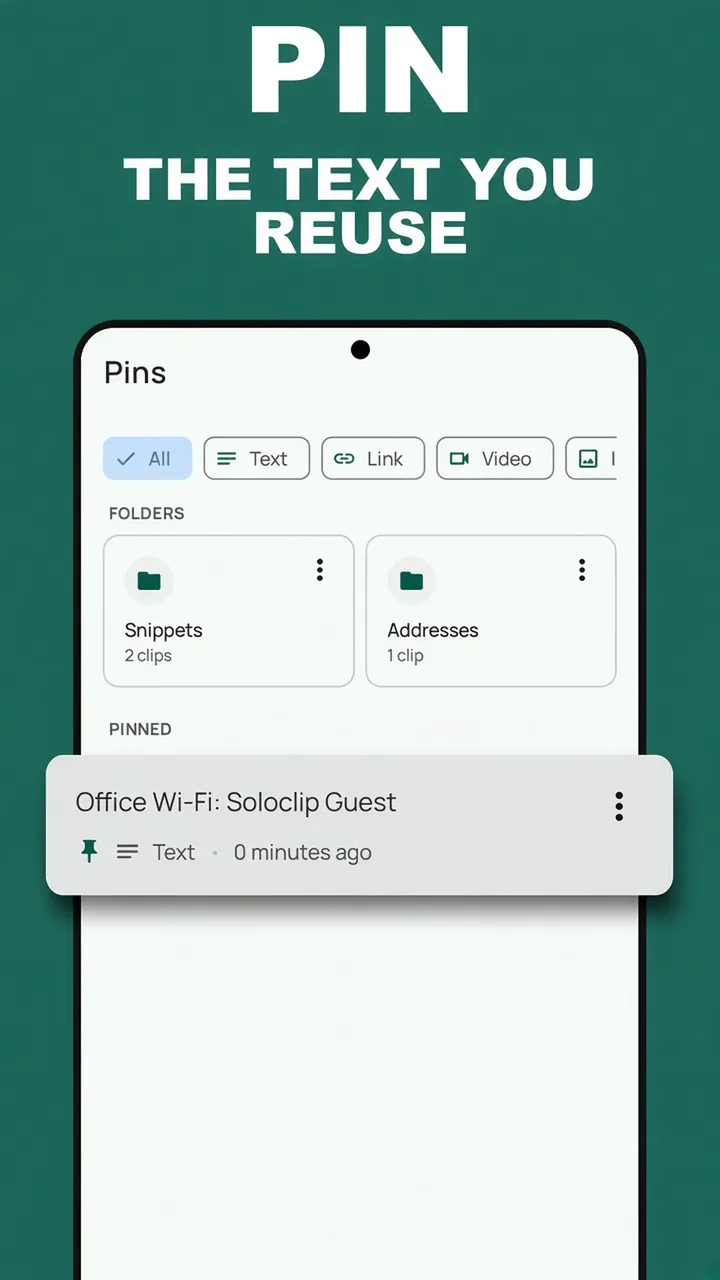
In Soloclip, pins live in the Pins tab. Folders group snippets (for example Addresses). They are stored on-device. They are not a cloud snippet library.
Folders vs a flat pin list
Use a folder when you have more than a few staples. Keep the pin strip for the two or three you grab from Quick Settings. Do not pin OTPs or passwords — those are filtered or short-lived on purpose.
Pin a snippet in Soloclip
Pro unlocks the actions. Free users see the locked Pins screen and the pay-once sheet.
- Unlock Pro oncePins, folders, keyboard insert, unlimited history, and the QS pinned strip are the pay-once set.
- Copy or add the textWi-Fi password, shipping address, support reply. Use Add clip if it is not on the clipboard.
- Pin it from HistoryOpen the clip actions and choose Pin. Or move it into a folder such as Addresses.
- Insert from the keyboardSwitch to Soloclip, open the insert panel, filter Pins, tap the snippet.
- Optional: Quick SettingsThe pinned strip is for copying a staple snippet without opening the full app.
Keep clipboard history on this phoneFree to download. Last 25 clips free. Then $3.99 once. No ads. No subscription.
Pin clipboard snippets FAQ
Do pins expire?
No. Unpinned history defaults to 30 days. Pins never auto-clear.
Are snippet folders on the free tier?
No. Pins and folders are Pro.
Can I use this as a text expander?
Soloclip inserts the full snippet from the keyboard. It does not expand trigger abbreviations in Gboard via Accessibility.