iPhone
How to hide videos on iPhone
Escondo encrypts videos on your iPhone and locks them behind a pattern. Move from Photos adds the videos to the vault and removes the originals, which stay in Recently Deleted for 30 days until you empty that album.
Create your vault
- Open Escondo and tap Create Vault. Three short intro pages come first. You can tap Skip.
- Draw a pattern. Use 6 dots or more and change direction at least once. Draw it again to confirm it.
- Write down the 9 words. On paper, in this order. Do not take a screenshot: iPhone cannot block screenshots here, and it would save the words in Photos. Tap I Wrote Them Down.
- Check your phrase. Type three of your words. If you tap Later instead, the vault holds up to 10 items until you check the phrase.
Move your videos in
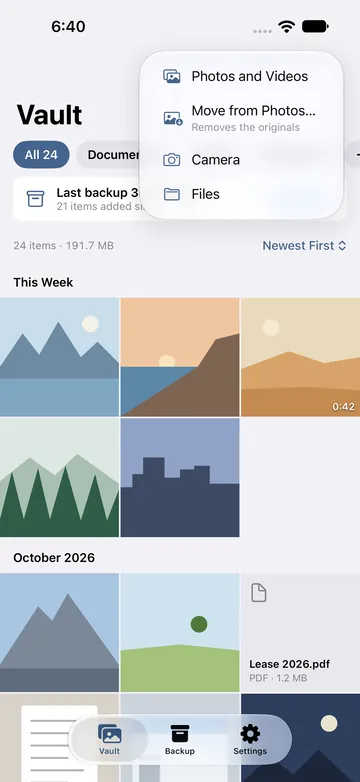
- Tap the plus button, then Move from Photos. The menu says: Removes the originals.
- Allow access to photos. All of them, or only the ones you pick. Full access is never required: with limited access, tap Manage, then Select More Photos.
- Choose what to move. Photos and videos, as many as you like. Tap Move.
- Wait while Escondo encrypts and checks each one. Keep Escondo open until it finishes.
- Confirm the delete. iPhone asks once. The originals go to Recently Deleted for 30 days.
- Empty Recently Deleted. Open the Recently Deleted album in Photos and delete them there. Until you do, the originals can still be opened from that album.
Space, time and playing
Escondo encrypts each video before the originals are removed, so it needs space for the encrypted copy. If there is not enough, it says so and changes nothing. Videos play inside the vault with a seek bar, and large videos can be played without decrypting the whole file first.
Record straight into the vault
The in-app camera saves to this vault, not to Photos. It is part of the Pay once purchase. A camera video is held briefly in a temporary folder before it is encrypted; the folder is emptied when the vault locks and when the app starts.
Recently Deleted, iCloud and backups
The moved originals wait in Recently Deleted for 30 days: open that album in Photos and delete them there. With iCloud Photos on, they are also removed from your other devices.
The vault is excluded from iCloud and Finder backups. Saving a backup file is a separate step you do in Escondo: it is saved through Files, for example to iCloud Drive.
Screenshots
Screenshots on iPhone. iOS does not let an app block screenshots. Escondo covers the screen in the app switcher and while the screen is recorded, and it tells you when a screenshot is taken. A screenshot of a hidden photo is saved to Photos, not encrypted. Delete it there.
Common questions
How many videos can I hide for free?
10 videos in the free vault, alongside 100 photos and 25 other files. Pay once to remove the limits.
Where did my videos go after the move?
Into the vault, encrypted. The originals are in Recently Deleted in Photos for 30 days until you empty that album.
Does hiding a video lower its quality?
No. Originals are stored untouched, and export gives them back at full quality.
Can I get the videos out later?
Yes. Export one file, a selection or everything to Files, iCloud Drive or a USB drive. It is always free. Exported copies are ordinary files, not encrypted.
What if I forget the pattern?
Use the 9 recovery words. On the unlock screen, tap the recovery phrase link, type the words, and draw a new pattern. Without the pattern and the words, nobody can open the vault, not even us. See Forgot your vault pattern?
Does Escondo need the internet?
No. The Android app has no internet permission and the iPhone app makes no network requests. Nothing is uploaded.
Related guides
- How to hide photos on iPhoneiPhone
- How to lock photos on iPhone (Hidden album vs a vault)iPhone
- Open a photo vault backup on a computerAndroid and iPhone
- Photo vault app with no subscriptionAndroid and iPhone
- Escondo app page
- How Escondo protects your files (security page)